5 Best Mini PCs With Windows 11 Pro (November 2026)
The best mini PCs with Windows 11 Pro include the Acemagic Ryzen 3 PRO mini PC for growing home offices, the Kamrui Pinova P1 mini PC for mounted office desks, and the Beelink SER3 16GB mini PC for everyday app switching.
On this page (10 sections)
- How we chose mini PCs with Windows 11 Pro
- The best mini PCs with Windows 11 for different desks
- How much processor power and memory do you need?
- How much SSD space should you buy?
- Which ports and mounting details matter most?
- What does Windows 11 Pro add to a home desk?
- How should you set up a Windows 11 mini PC?
- How do you care for a small desktop?
- Which buying mistakes are easiest to avoid?
- Which best mini PC with Windows 11 fits your next step?
The best mini PC with Windows 11 Pro for most home and office users here is the Acemagic Ryzen 3 PRO mini PC. Its processor, display connections and upgrade options make it a useful starting point for a desk that may grow.
Choose differently if you have a clear priority: more memory without opening the case, two HDMI monitors, or no cooling-fan noise. Those needs matter more than buying the smallest box or the highest score.
All 5 configurations include Windows 11 Pro, but they differ in the work they suit. None should be your default choice for demanding gaming, large video projects or software that needs a dedicated graphics card.
For a broader comparison, see our best mini PCs for home and office guide. Read what to check when a mini PC comes with Windows if you're unsure what an included operating system should cover.
Our picks at a glance
-
1

-
2

-
3
- 4
 Best for light household tasksCheck it
- 5
 Check it
MeLE Quieter4C fanless mini PC
Best for noise-sensitive workspaces
How we chose mini PCs with Windows 11 Pro
We favored useful office configurations, clear display connections and room to adapt the computer as your needs change. GoodsTopia compared the supplied processor, memory, storage, cooling and connection details.
The ranking puts the strongest general office fit first, then separates options for different buyers. A lower-ranked specialist can still be the right choice for your desk.
Processor core and thread counts matter when several tasks compete for attention. Starting memory matters when you keep apps open, while storage capacity determines how much you can keep locally.
We also considered how the computer fits into a real workspace. Mounting hardware, monitor connections and fanless cooling can solve a specific problem that extra processing power won't fix.
These are configuration-specific recommendations. The two SER3 versions share a processor, but their starting capacities and stated memory upgrade limits differ.
| Product | Best for | Processor | Memory and storage | Display outputs | Our score |
|---|---|---|---|---|---|
| Acemagic Ryzen 3 PRO mini PC | growing home offices | AMD Ryzen 3 PRO 7330U | 8GB RAM, 256GB SSD | HDMI 2.0, DP1.4, USB-C DP1.4 | 8.7 |
| Kamrui Pinova P1 mini PC | mounted office desks | AMD Ryzen 3 PRO 7330U | 8GB RAM, 256GB SSD | HDMI, DisplayPort, USB-C | 8.4 |
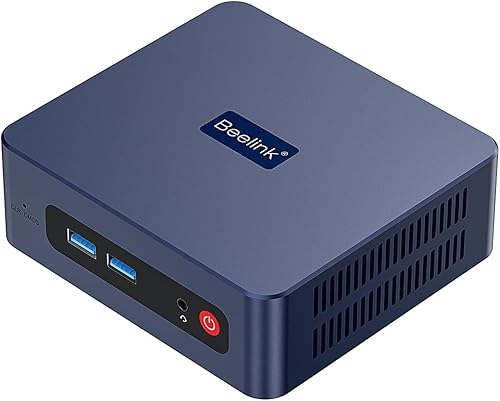
| Beelink SER3 16GB mini PC | everyday app switching | AMD Ryzen 3 3200U | 16GB RAM, 500GB SSD | Two HDMI outputs | 7.9 |
| Beelink SER3 8GB mini PC | light household tasks | AMD Ryzen 3 3200U | 8GB RAM, 256GB SSD | Two HDMI outputs | 7.4 |
| MeLE Quieter4C fanless mini PC | noise-sensitive workspaces | Intel N150 | 16GB RAM, 512GB SSD | Two HDMI 2.0 and USB-C | 7.3 |
The best mini PCs with Windows 11 for different desks
Start with Acemagic for a growing office, then consider the other models when mounting, starting memory or quiet operation takes priority. Each pick below has a clear use and a reason some buyers should pass.
Acemagic Ryzen 3 PRO mini PC: Best for growing home offices
- Ryzen 3 PRO 7330U
- 8GB RAM and 256GB SSD
- Dual memory slots and dual drive bays
- HDMI, DisplayPort and USB-C video output
A flexible choice for an office that may grow, with several display connections and room to add memory or storage.
Pros
- Dual memory slots and dual drive bays
- Three display outputs
- Windows 11 Pro preinstalled
Cons
- 8GB starting memory limits heavier multitasking
- Fan cooling may bother noise-sensitive users
1. Acemagic Ryzen 3 PRO mini PC
Choose the Acemagic if you want an office computer with room to grow. Its Ryzen 3 PRO 7330U has 4 cores and 8 threads, paired with 8GB RAM and a 256GB SSD.
That starting capacity suits documents, email and browser work, but busy multitaskers should plan for more memory. Dual memory slots and dual drive bays give it a clearer expansion path than a system chosen only for today's needs.
Storage support includes M.2 SATA and NVMe PCIe 3.0 x4, with up to 4TB total capacity. Check the required drive type before buying an upgrade, since matching the connector shape alone isn't enough.
HDMI 2.0, DisplayPort 1.4 and USB-C video output support three 4K displays. Gigabit Ethernet, Wi-Fi 5 and Bluetooth 4.2 cover wired networking and common wireless accessories.
The box includes a wall mount, screws, HDMI cable and power adapter. Its cooling system uses an 80mm fan.
Skip it if you want to avoid both upgrades and fan noise. Its main advantage is flexibility, so it makes less sense if you want a sealed, quiet appliance for a fixed light workload.
Kamrui Pinova P1 mini PC: Best for mounted office desks
- Ryzen 3 PRO 7330U
- 8GB RAM and 256GB SSD
- HDMI, DisplayPort and USB-C
- VESA bracket included
A Ryzen office option for clearing desk space, with a VESA bracket and video outputs for a multi-screen workspace.
Pros
- VESA bracket included
- Triple-screen support
- Gigabit Ethernet and Wi-Fi 5
Cons
- Starts with 8GB RAM
- Fan cooling requires room for airflow
2. Kamrui Pinova P1 mini PC
Choose the Kamrui Pinova P1 for a mounted office desk where the computer should sit behind a compatible monitor. Its included VESA bracket helps free the surface for paperwork, a keyboard or a drawing area.
The P1 uses a Ryzen 3 PRO 7330U and starts with 8GB RAM and a 256GB SSD. That makes it a sensible direction for routine office work, provided you keep expectations for heavy multitasking in check.
HDMI, DisplayPort and USB-C video connections support three screens. Four USB 3.2 ports provide connections for accessories, while Gigabit Ethernet, Wi-Fi 5 and Bluetooth 4.2 handle networking and wireless devices.
The case measures 5.06 x 5.06 x 2.01 in and uses fan cooling. Before mounting it, check that the bracket won't clash with your monitor stand or leave cables pressed against the wall.
Wake on LAN and automatic power-on options may help with a remotely managed desk. They require the right network and firmware settings.
Skip it if you need more memory immediately and don't want to investigate upgrades. Buyers without a mounting need should weigh Acemagic's clearer expansion options first.
Beelink SER3 16GB mini PC: Best for everyday app switching
- Ryzen 3 3200U
- 16GB DDR4 RAM and 500GB SSD
- Two HDMI outputs
- Memory and storage expansion supported
More memory from the start for routine office work, plus two HDMI connections for keeping documents and reference material on separate screens.
Pros
- 16GB RAM and 500GB SSD
- Two HDMI outputs
- Expansion supported for memory and storage
Cons
- Two-core processor limits demanding workloads
- Two display outputs rather than three
3. Beelink SER3 16GB mini PC
Choose this SER3 if you want more memory from day one for routine app switching. Its 16GB DDR4 RAM and 500GB NVMe SSD leave more room for open apps and local files than the smaller SER3 configuration.
The Ryzen 3 3200U has 2 cores and 4 threads, with speeds up to 3.5GHz. More RAM helps with keeping programs open, but it doesn't turn this processor into a choice for long exports or demanding calculations.
Two HDMI outputs make it convenient for a desk with two HDMI monitors. Four USB 3.2 ports, Gigabit Ethernet and a 3.5mm audio jack cover common wired connections.
This configuration supports up to 32GB memory, a 2TB NVMe drive and an additional 2.5-inch SATA drive up to 2TB. Those options are useful if documents and media gradually outgrow the starting SSD.
Its best role is a general office or household computer where app capacity matters more than heavy processing. Think reference pages beside a document, rather than several compute-heavy programs running together.
Skip it for demanding creative work or a three-monitor desk. The Ryzen 7330U options deserve a closer look when processor demands come first.
Beelink SER3 8GB mini PC: Best for light household tasks
- Ryzen 3 3200U
- 8GB RAM and 256GB SSD
- Two HDMI outputs
- Supports two monitors
A basic household desktop for email, documents and browsing, with dual HDMI outputs and a smaller starting configuration.
Pros
- Two HDMI ports for dual displays
- Supports memory and storage expansion
- Windows 11 Pro included
Cons
- Less room for multitasking than the 16GB SER3
- Two-core, four-thread processor
4. Beelink SER3 8GB mini PC
Choose the smaller SER3 for light household work with a controlled number of open programs. Its 8GB RAM and 256GB M.2 SSD suit a desk used mainly for email, forms, documents and browsing.
It shares the Ryzen 3 3200U processor with the larger SER3 configuration. Choose between them based on starting capacity and upgrade plans, rather than expecting a processor change.
Dual HDMI outputs let you keep a reference page beside your main task. Four USB 3.2 Gen2 ports, Gigabit Ethernet and an audio jack cover a basic wired desk without requiring a display dock.
This version supports up to 16GB RAM, a 2TB NVMe SSD and a 500GB to 2TB 2.5-inch SATA drive. Don't assume the larger SER3's memory limit applies to this configuration.
It fits a spare desk or a household computer used for short, simple tasks. Keeping fewer background apps open will help preserve its limited memory.
Skip it if you already expect to upgrade immediately. Compare the complete cost and effort with starting at the capacity you need, including any parts, tools and help required.
MeLE Quieter4C fanless mini PC: Best for noise-sensitive workspaces
- Intel N150 processor
- 16GB RAM and 512GB SSD
- Fanless design
- Three independent 4K displays
The specialist choice for avoiding cooling-fan noise, with enough starting memory and storage for a quiet everyday desk.
Pros
- Fanless design
- 16GB RAM and 512GB SSD
- Three independent 4K displays
Cons
- Light-work focus rather than demanding creative tasks
- Passive cooling needs an open placement
5. MeLE Quieter4C fanless mini PC
Choose the MeLE Quieter4C when avoiding cooling-fan noise is your main goal. Its fanless design suits a quiet study, bedroom desk or room where a nearby fan would be distracting.
The Intel N150 has 4 cores and 4 threads, paired with 16GB DDR4 RAM and a 512GB SSD. This is a sensible configuration for everyday office work, media playback and a dedicated light-duty computer.
Two HDMI 2.0 ports and one USB-C video output support three independent 4K displays. Wi-Fi 5, Bluetooth 5.1 and Gigabit Ethernet provide wired and wireless connection choices.
At 5.2 x 3.2 x 0.7 in and 0.44 lb, it is easy to place on a small desk. MeLE includes a VESA mount, plus an empty M.2 2280 NVMe slot and a Micro SD slot for additional storage.
Skip it for sustained heavy processing. Passive cooling still needs open space around the case, so don't hide it beneath papers or inside a closed drawer.
Choose it for its cooling design, rather than assuming more screens mean more computing power. Our guide to mini PC fan noise explains the cooling tradeoffs.
How much processor power and memory do you need?
Choose the processor for your hardest task and the memory for the apps you keep open together. A computer can have enough storage and still feel limited by either of those parts.
Choosing the best Windows 11 mini PC for your workload
Write down your busiest normal work session before comparing models. A browser, spreadsheet, video call and messaging app running together are a different load from opening one document at a time.
For that mixed office workload, start your comparison with the Ryzen 7330U choices. Their higher core and thread counts give them a stronger basis for handling concurrent work than the two-core SER3 processor.
For simple household tasks, the SER3 options remain worth considering. The larger configuration makes more sense when you switch among several ordinary apps and want more memory without an immediate upgrade.
Check the requirements of any specialist program before choosing a mini PC. Large design files, virtual machines and video projects may need more processing power, memory or graphics capability than these picks provide.
When 8GB is enough and when to choose 16GB
8GB is a light-use starting point, especially if you close programs after finishing with them. It leaves less room for a browser full of tabs alongside a video call and other apps.
Choose 16GB if you want fewer reasons to manage what stays open. It is also the more practical starting capacity for a shared computer where different users install background tools.
Memory doesn't replace processor power. A computer with more RAM can hold more working material, but a demanding calculation still depends on the CPU.
Integrated graphics also share system resources. Don't read a graphics memory figure as proof that the computer has a separate graphics card suitable for demanding games.
How much SSD space should you buy?
Choose storage for your files and apps, with spare room for updates and future work. The capacity on the box isn't the amount you'll have free after Windows and other software are installed.
A smaller SSD can work for documents and browser-based tasks, especially if large files live elsewhere. Photos, downloaded video, offline folders and creative projects fill it much faster.
Check the size of your current user folders and installed apps before choosing. This gives you a better starting point than guessing how many files a drive can hold.
An upgrade path helps only if you're willing to use it. If opening a computer or moving Windows to another drive sounds like a chore, buy enough starting capacity for your likely needs.
RAM and SSD upgrades solve different problems. Add RAM when open apps compete for memory; add storage when the drive lacks room for files and software.
Before ordering parts, confirm slot type, supported capacity and access instructions for the exact configuration. Our guide to upgrading mini PC RAM explains the checks that prevent an incompatible part order.
A second internal drive is useful storage, but it isn't a complete backup. Keep a separate copy of important files somewhere that won't be lost with the computer.
Which ports and mounting details matter most?
Match your existing screens and accessories before choosing the case size. A tiny computer becomes less convenient if it needs several adapters and a hub just to serve your desk.
Start with each monitor's input, resolution and desired refresh rate. A video output must work with the cable and monitor as a complete connection.
USB-C describes a connector shape, not a fixed set of features. Don't assume a port can carry video or power merely because another computer's USB-C port does.
For a two-monitor desk with HDMI inputs, dual HDMI outputs keep the connection simple. If your monitors use mixed inputs, a broader selection of video ports may be more useful.
Count the ports needed for your keyboard, mouse, webcam, headset, printer and external drive. Leave room for an occasional flash drive instead of planning to occupy every port permanently.
Mounting needs a clearance check. Measure space for the case, power plug and cable bends, and make sure you can still reach the power button.
A VESA mount can also compete with a monitor arm for the same holes. Check the complete mounting arrangement before deciding that the computer will fit behind the screen.
What does Windows 11 Pro add to a home desk?
Windows 11 Pro adds management and access features that matter more to some work setups than to ordinary home use. It doesn't make the processor faster or include a paid office software subscription.
Pro features such as Remote Desktop hosting and business management options can be useful when required by your workplace. Ask your IT contact about the exact requirements before choosing a work computer.
For browsing, email and documents, focus first on hardware and app compatibility. Paying attention to memory, ports and storage will usually affect your daily experience more than the edition name.
All configurations here include Pro, so choose among them by workload. Our Windows 11 mini PC buying guide explains how to assess the operating system alongside the rest of the computer.
How should you set up a Windows 11 mini PC?
Start with one monitor and the essential accessories, then add the rest after the desktop is working. This makes a missing picture or connection problem easier to trace.
Place the computer on an open surface and connect its supplied power adapter. Select the correct monitor input before assuming the computer has failed to send a picture.
Finish Windows setup, check activation and install available system updates. Restart when prompted before installing your main apps or moving important files.
Confirm that Wi-Fi or Ethernet, sound and your chosen peripherals work. If you need drivers, use the manufacturer's support channel rather than a general driver-download utility.
Add the second or third screen afterward. In Windows display settings, choose whether to extend or duplicate the desktop, then arrange the screen positions to match your desk.
Set a comfortable display scale on high-resolution monitors. Extra pixels are useful only if text and controls remain easy to read.
Secure the computer before daily use. Set up your sign-in, review recovery options and create a backup routine for documents you can't replace.
Keep the order details, exact model information and support contact with your records. Our guide to connecting a mini PC to a monitor and keyboard walks through the physical setup.
How do you care for a small desktop?
Keep airflow paths clear and give the case room to shed heat. Fanless computers also release heat into the room, so an enclosed cupboard isn't a suitable default location.
Avoid soft surfaces, stacked equipment and loose papers over the case. When mounting behind a monitor, leave space around vents and prevent cables from pulling tightly on the ports.
Shut down and unplug the computer before cleaning its exterior. Use the manufacturer's cleaning instructions, and keep liquids away from vents and connectors.
If the computer becomes unusually slow, check what is running before changing hardware. A full drive, background app or pending restart can cause trouble that a memory upgrade won't solve.
Keep Windows and everyday software current, and remove programs you no longer use. Check your backup occasionally by opening a copied file, rather than assuming the process is working.
For ongoing crashes or unexpected shutdowns, record what happens and contact support. Repeatedly running the same heavy task without checking heat and software issues can make diagnosis harder.
Which buying mistakes are easiest to avoid?
Avoid choosing by model name, maximum resolution or Windows edition alone. Each can sound reassuring while leaving the main question unanswered: will this configuration suit your actual work?
- Confusing the SER3 versions: Match memory, storage and supported upgrade limits to the exact configuration.
- Treating three screens as extra speed: More displays give you workspace, but open apps still share the same processor and memory.
- Expecting 4K output to mean 4K gaming: Desktop display support says little about demanding game performance.
- Ignoring the complete desk: Account for the monitor, keyboard, mouse, webcam and any required cables or adapters.
- Planning an immediate upgrade without comparing alternatives: Starting with enough capacity can save effort and avoid buying parts twice.
- Hiding the power adapter badly: Leave the adapter accessible and keep its cable from pulling on the computer.
- Using sleep as a backup plan: Unsaved work and a single local copy remain vulnerable to hardware or software problems.
Check your must-have apps and connections first. Then compare the remaining candidates on the feature that matters most to your desk.
Which best mini PC with Windows 11 fits your next step?
Choose the Acemagic for a growing office if you expect to add memory, storage or screens. Choose the Kamrui when a mounted workspace is the main goal and its starting capacity fits your work.
Pick the Beelink SER3 16GB for everyday app switching with two HDMI monitors. Its smaller counterpart suits lighter household use, provided you won't immediately need to replace the starting configuration.
Choose the MeLE for a noise-sensitive desk where everyday tasks take priority over sustained heavy processing. Leave it in an open position even though it has no cooling fan.
The best mini PC with Windows 11 is the one that meets your workload without an avoidable upgrade or adapter problem. Before ordering, use our mini PC buying guide to check your app needs, monitor inputs and required ports.
Our top 3 picks at a glance
-
1
-
2
-
3
Frequently asked questions
Do these mini PCs come with Windows 11 Pro?
All 5 configurations include Windows 11 Pro; match the full model name, memory and SSD capacity before ordering, since similar names can cover different versions. During setup, check Windows activation and install available updates before adding your files, work accounts and everyday software.
Is 8GB RAM enough for a Windows 11 mini PC?
8GB RAM is enough for light browsing, email and document work when you keep the number of open apps modest; choose 16GB if you often combine video calls, spreadsheets and many browser tabs. Extra memory helps keep apps open, but it doesn't make a slower processor faster.
Which Windows 11 mini PC is fanless?
The MeLE Quieter4C is the fanless choice in this group; it avoids cooling-fan noise, which suits a quiet study or bedroom desk. Give its case room to release heat, and choose it for everyday work rather than long, demanding processing jobs that keep the computer under load.
Can these mini PCs run two monitors?
Yes, all 5 support at least two monitors; the two Beelink SER3 versions use dual HDMI connections, while the Acemagic, Kamrui and MeLE support three displays. Match your monitors' inputs, cable capabilities and desired refresh rate before buying adapters, then arrange the screens in Windows display settings.
What should I check before buying a mini PC with Windows 11 Pro?
Check your main apps' requirements, then match the processor, RAM, storage and display connections to your work; confirm the exact Windows edition and configuration, count the ports your accessories need, and plan an open place for the case. Include any monitor, keyboard, mouse or adapter you still need.


