Do Mini PCs Come With Windows? What to Check
Many mini PCs come with Windows preinstalled, but others include Linux or no operating system. Check the exact configuration, Windows edition, and license details before you buy.
On this page (9 sections)
- Do mini PCs come with Windows as standard?
- Is Windows preinstalled the same as activated?
- Does Windows Home or Pro matter on a mini PC?
- Which Windows mini PC suits your desk?
- How much memory and storage should you choose?
- What if a mini PC comes without Windows?
- What should you do during the first Windows setup?
- Which mistakes cause trouble after setup?
- Do mini PCs come with Windows? Make the final choice
Many mini PCs come with Windows preinstalled, but some include Linux or no operating system. Check the exact configuration, Windows edition, and license details before you buy.
Windows is only part of the choice. You also need enough memory for your apps, storage for your files, and ports that match your monitor.
Do mini PCs come with Windows as standard?
Windows isn't standard on every mini PC. Complete systems often include it, while barebones models may need an operating system, memory, storage, or some combination of those parts.
Don't assume that every version of a model has the same bundle. A different memory or storage option can also change what's included.
For more help comparing operating system choices, see our guide to mini PCs with Windows 11.
How do you confirm a mini PC comes with Windows?
Check that the exact configuration names Windows, including its version and edition. “Windows compatible” means the hardware can support Windows, which is different from receiving it already installed.
Before ordering, confirm these details:
- Operating system: Does it include Windows, Linux, or no OS?
- Edition: Is it Windows Home or Pro?
- License: Is a Windows license included?
- Hardware: Are RAM and an SSD installed?
- Accessories: Do you need a display cable, keyboard, mouse, or monitor?
If anything is unclear, ask the manufacturer about the specific configuration. Keep the answer with your order details so you can refer to it during setup.
Is Windows preinstalled the same as activated?
Preinstalled means Windows is on the drive; activated means Windows has recognized a valid license. Those are separate checks, so don't treat the first as proof of the second.
After setup, connect to the internet and open Settings, then System, then Activation. A digital license may activate automatically once the computer is online.
If activation fails, use the built-in troubleshooter and contact support before buying another license. Avoid unofficial activation tools or requests to disable Windows security.
An activation issue is easiest to address early. Check it while you can still resolve problems through the computer's support or return process.
Does Windows Home or Pro matter on a mini PC?
Windows Home suits most personal desktops, while Pro adds features for business management and certain remote access needs. Browsing, email, streaming, and ordinary document work don't require Pro.
Pro can matter if you need the PC to accept Microsoft's built-in Remote Desktop connections or join an organization's Windows domain. Ask your workplace which edition and device requirements it expects before buying a work computer.
Windows Pro also doesn't make a processor faster or add memory. Choose the hardware for your workload, then confirm the edition supports your work requirements.
If Pro is required, compare our guide to mini PCs with Windows 11 Pro.
Which Windows mini PC suits your desk?
Choose by your workload and expansion needs, since all 3 examples below include Windows 11 Pro. Their processors, memory, storage, and display connections create more useful differences than the shared operating system.
Kamrui Pinova P1 for a straightforward home desk
The Kamrui suits a buyer who wants a compact computer for email, documents, web apps, and everyday home tasks. Its Ryzen 3 PRO 7330U has 4 cores and 8 threads.
Choose it if you keep most files online and work in a modest number of apps at once. Its included VESA bracket also helps if you'd rather attach the computer behind a compatible monitor than leave it on the desk.
Skip this configuration for heavy multitasking or a large local photo and video collection. The starting memory and storage deserve more attention than the Pro label if your workload keeps growing.
Its HDMI and DisplayPort connections give you options for matching an existing monitor. Check your screen's inputs before planning the cable layout or mounting position.
Acemagic Ryzen 3 PRO for planned upgrades
The Acemagic suits a buyer who wants a working Windows desktop now and room to change its memory or storage later. It uses the same processor model as the Kamrui, so expansion is the more useful distinction here.
This configuration starts with 8GB RAM and a 256GB SSD. It has dual memory slots and separate M.2 SATA and NVMe storage slots, with support for up to 4TB total storage.
Choose it if you're comfortable planning upgrades, including checking part compatibility and installation instructions. Dual slots don't tell you which slots are already occupied, so confirm that before ordering extra parts.
Skip it if you need more memory immediately and don't want to open the case. Its HDMI, DisplayPort, and video-capable USB-C connections are useful for a desk with several screens, but extra screens don't increase computing power.
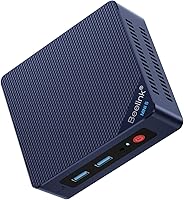
Beelink SER3 for more memory from the start
The Beelink suits basic office and home users who want more memory and file space without an immediate upgrade. It provides twice the starting RAM of the other examples.
Choose it for a modest workload with several apps open, rather than buying solely for the largest memory figure. Its Ryzen 3 3200U has 2 cores and 4 threads, so the extra RAM doesn't remove processor limits.
Skip it for demanding editing, large code builds, or other sustained computing work. A newer, more capable processor should take priority for those tasks.
Its 2 HDMI outputs suit a desk with compatible dual monitors. Memory can expand to 32GB, and it also supports an additional 2.5-inch SATA drive if your file collection grows.
How much memory and storage should you choose?
Match memory to your open apps and storage to the files you keep locally. Windows being included doesn't mean every configuration will suit your daily work.
For a few browser tabs, email, and documents, 8GB can serve a basic desk. Choose 16GB if you regularly combine video calls, many tabs, spreadsheets, and other apps.
A 256GB SSD needs more space management once Windows, apps, downloads, and personal files share it. A 500GB drive gives you more room, but a backup is still essential.
Don't buy a lower-memory model on the assumption that every mini PC is easy to upgrade. Check supported parts, slot access, and instructions first.
For the wider hardware decision, use our guide to choosing a mini PC by CPU, RAM, SSD, and ports.
What if a mini PC comes without Windows?
Buy a model without Windows only if you're prepared to install and license it, or you plan to use another supported operating system. It adds work before the computer is ready for daily use.
Check the requirements for your chosen Windows version and find the manufacturer's driver downloads first. Network drivers matter because you may need them to get online after installation.
You'll usually need access to another computer to prepare a USB installer. Save any needed drivers to a separate drive and follow the manufacturer's installation guidance.
A model with Linux can suit someone whose apps work there. If your job depends on Windows-only software, confirm compatibility before choosing an alternative OS.
What should you do during the first Windows setup?
Connect the essentials, finish Windows setup, and check activation before moving your files. Start with the computer on the desk so its ports and power button remain easy to reach.
- Connect a monitor, keyboard, mouse, and the supplied power adapter.
- Follow the setup prompts and connect to your network.
- Check the Windows edition and activation state in Settings.
- Run Windows Update and restart when asked.
- Check sound, display output, Wi-Fi, Bluetooth, and your usual peripherals.
- Set up file backups before transferring important documents.
Windows doesn't automatically include paid desktop Office apps. Check the software licenses you already have before assuming your word processor or spreadsheet app is covered.
For the full connection process, follow our guide to setting up a mini PC with a monitor and keyboard.
Which mistakes cause trouble after setup?
Blocked vents, crowded storage, and unsuitable cables can spoil an otherwise suitable Windows setup. Leave space around cooling openings, especially if you mount the computer behind a screen.
Don't place it on fabric or stack objects against its vents. Shut it down and unplug it before cleaning exterior dust, following the manufacturer's care instructions.
Keep some SSD space free for updates and temporary files. Move large archives to suitable storage rather than waiting until the drive is full.
USB-C ports don't all support video, and a monitor's resolution alone doesn't confirm a cable will support your intended refresh rate. Match the computer's output, cable, and screen before buying adapters.
Do mini PCs come with Windows? Make the final choice
Choose Windows preinstalled for the simplest start, then pick the hardware that fits your desk. Confirm the exact configuration and check activation as soon as setup is complete.
Pick the Kamrui for a straightforward home desk, the Acemagic if expansion is part of your plan, or the Beelink for more starting memory and storage with basic workloads.
If your main question has moved from “do mini PCs come with Windows?” to which computer fits your work, compare our best mini PCs for home and office. For the limits of this computer type, read what a mini PC can and cannot do.
Frequently asked questions
Do all mini PCs come with Windows?
No, some mini PCs come with Linux or no operating system, while others include Windows. Check the exact configuration rather than relying on the model name, and confirm the Windows edition and license details before you buy if you want a computer that needs no operating system installation.
Is Windows 11 included with a mini PC?
Windows 11 is included with some mini PCs, including the 3 examples in this guide. Other configurations may use a different operating system or arrive without one, so confirm the selected bundle before ordering and check activation after completing the first Windows setup.
Can I install Windows on a mini PC that has no operating system?
Yes, if the mini PC meets the requirements for your chosen Windows version and has suitable drivers. You'll also need a valid license and installation media, usually prepared on a USB drive using another computer, so check hardware support before choosing a computer without an operating system.
How can I tell if Windows is activated?
In Windows 11, open Settings, then System, then Activation to see the activation state. If it isn't activated, connect to the internet and follow the built-in troubleshooting steps, then contact the computer's support team with your order details if the issue remains unresolved.