What Is a Mini PC? What It Can and Cannot Do
A mini PC is a small desktop computer that uses a separate monitor, keyboard and mouse. It suits everyday work and streaming, while gaming, demanding apps and upgrades depend on the model.
On this page (10 sections)
- What is a mini PC, and how does it work?
- What can a mini PC do for home and office use?
- What can a basic mini PC not do well?
- Which of these mini PCs suits your desk?
- How do you choose the right mini PC configuration?
- Do mini PCs come with Windows?
- Can a mini PC connect to two monitors?
- How do you set up a mini PC?
- How do you keep a mini PC running well?
- Is a mini PC right for you?
A mini PC is a small desktop computer that connects to a separate monitor, keyboard and mouse. It can replace a bulky tower for browsing, documents, video calls and streaming when you choose hardware that fits your workload.
If you're asking what is a mini PC, think of a desktop packed into a smaller box. You save desk space, but still need power, a screen and accessories.
This guide explains its limits and uses 3 compact computers to show how storage, ports and upgrade options change the buying decision.
What is a mini PC, and how does it work?
A mini PC puts the processor, memory, storage and other computer parts inside a compact case. Connect your devices, start its operating system and open apps much as you would on a larger desktop.
Unlike a laptop, it normally has no built-in screen, keyboard or battery for portable use. You can move it between desks, but each location needs a suitable display, accessories and an outlet.
Some mini PCs arrive ready to use, while barebones models need parts or an operating system. Check the exact configuration rather than assuming every version of the same model includes the same equipment.
What can a mini PC do for home and office use?
A mini PC suits everyday desktop work and entertainment, provided its hardware meets your apps' requirements. Email, spreadsheets, online shopping, video calls and streamed video are common uses.
For a home office, the useful question is what you run together. A browser, meeting app and large spreadsheet need more memory than a single document editor.
In a living room, a mini PC gives you a full desktop interface on your TV. Plan how you'll control it from the couch, since desktop apps often work better with a keyboard and mouse than a TV remote.
Some models also support server or network projects. Those uses require suitable software, storage and security settings, so they involve more work than connecting a screen and opening a browser.
What can a basic mini PC not do well?
A basic mini PC is a poor choice for demanding games, large video projects or extensive internal expansion. A small case limits space for graphics hardware, cooling and extra components.
Integrated graphics share system resources and generally suit lighter workloads. Support for 4K video playback doesn't mean a computer can run a demanding game or edit complex footage smoothly at that resolution.
Check your software's recommended requirements, not just its minimum requirements. The minimum may let an app open without giving you enough headroom for a comfortable work session.
A larger desktop offers more room for future changes. Our comparison of mini PCs versus desktop computers explains when that flexibility matters.
Which of these mini PCs suits your desk?
The GMKtec suits basic office use, the Beelink offers more included storage, and the Bosgame provides clearer expansion options. Choose by the work and connections you need rather than the size of the case alone.
GMKtec G3S: for a basic two-screen workstation
The GMKtec G3S is a sensible starting point for documents, email and browser-based work. Its Intel N95 processor fits routine computing rather than demanding creative projects.
Choose it if your files mostly stay in cloud storage and you want separate screens for a document and reference material. Wired Gigabit Ethernet also gives you a network option when desk Wi-Fi is unreliable.
Skip it if you keep a large local media collection or routinely leave many memory-heavy apps open. Don't buy it assuming you can add parts later without first confirming compatible upgrades.
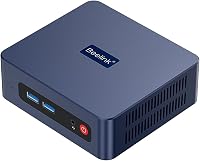
Beelink Mini S12: for everyday work with more local files
The Beelink Mini S12 makes sense for a basic desk where you want more built-in file space. Its larger included drive gives documents, downloads and applications more room than the GMKtec configuration above.
Its 4 USB 3.2 Gen 2 ports help if you use a wired keyboard, mouse, webcam and external drive. Count those connections before buying so you know whether a USB hub will be needed.
Choose it for routine work with more local storage needs. Skip it if you're expecting the extra storage to improve processing power or make heavy multitasking comfortable.
Bosgame E5 Plus: for planned upgrades and more screens
The Bosgame E5 Plus is the strongest fit here for buyers who want room to add memory and storage. It uses a Ryzen 3 5400U processor and starts with 8GB RAM and a 256GB SATA SSD.
Its 2 SODIMM slots support up to 64GB RAM, and an additional M.2 NVMe slot allows more storage. Those options suit someone whose files or workload may grow.
Choose it if you need those display connections or a defined upgrade path. Skip it if your main goal is demanding gaming with a dedicated graphics card, since it uses integrated graphics.
How do you choose the right mini PC configuration?
Choose a mini PC around your apps, connected devices and future needs. A processor name alone doesn't tell you whether the whole configuration fits your desk.
What is a useful mini PC spec checklist?
A useful mini PC checklist starts with your busiest normal work session. Write down the apps you use together, then check these parts:
- Processor: Match it to the apps' recommended requirements, especially for editing, development or other demanding work.
- Memory: 8GB can suit light use; 16GB gives more room for several apps and browser tabs.
- Storage: Count applications, downloads and local files, then leave room for updates and future work.
- Ports: Count USB accessories, display connections, audio devices and wired networking.
- Upgrades: Confirm compatible memory and storage before treating future expansion as part of your plan.
Storage and memory solve different problems. A bigger SSD holds more files, while more RAM helps keep active apps and data available during use.
Our guide on how to choose a mini PC explains these tradeoffs. If future expansion matters, also check whether you can upgrade mini PC RAM before ordering parts.
Do mini PCs come with Windows?
Some mini PCs include Windows, while others need an operating system installed. The Bosgame E5 Plus includes Windows 11 Pro, but don't assume every compact computer comes with Windows.
Confirm the operating system, license and app compatibility for your chosen configuration. An included operating system also doesn't mean paid office software comes with it.
Our guide to mini PCs and Windows 11 covers the checks that matter before choosing a Windows model.
Can a mini PC connect to two monitors?
Many mini PCs support 2 or more monitors, but the available outputs must match your screens. Check resolution and refresh rate as well as connector shape.
The GMKtec and Beelink above support 2 displays at 4K and 60 Hz. The Bosgame uses different output types for its third screen, so plan the cables or adapters each monitor needs.
Don't assume every USB-C port carries video. Look for explicit display support, and check an adapter's direction before buying one.
How do you set up a mini PC?
Set up a mini PC by connecting the display, keyboard, mouse and supplied power adapter, then following its startup instructions. Start with one screen so you can spot connection problems easily.
Place the computer on a firm surface with its vents clear. If you mount it behind a monitor, check bracket compatibility and leave access to power and frequently used ports.
Select the right input on the screen, complete operating system setup and install system updates. Then connect extra displays, adjust text scaling and check that your webcam, microphone and speakers work.
Use the model's own first-start instructions for network connection timing. Our mini PC setup walkthrough covers the full desk setup.
How do you keep a mini PC running well?
Keep a mini PC reliable by maintaining airflow, installing updates and backing up files. Small computers still need clear vents and space for warm air to escape.
Keep fabric, paper and dust away from the air openings. Shut down and unplug the computer before cleaning its exterior, and follow the manufacturer's cleaning instructions.
Leave free storage for updates and temporary files. Keep a separate backup of important documents, since an internal drive is not a backup of itself.
If crashes or heat problems appear, check airflow and running apps before changing hardware. Our guide to mini PC overheating and crashes explains what to check next.
Is a mini PC right for you?
The practical answer to what is a mini PC is a desktop for people who want a smaller computer and can work within its hardware limits. Choose the GMKtec for basic office work, the Beelink for more included storage, or the Bosgame for planned expansion.
Choose a laptop if you need a screen and battery wherever you work. Choose a tower if strong graphics and frequent internal upgrades drive the decision.
For help weighing the full setup cost, read whether mini PCs are worth it. Once you've counted your apps, screens and accessories, use our best mini PCs for home and office guide to build your shortlist.
Frequently asked questions
What is a mini PC used for?
A mini PC is used for browsing, documents, video calls, online classes and media playback; some models also suit development or network tasks, depending on their hardware and software support. Choose around the apps you use together, the files you keep and the screens you need to connect.
Does a mini PC need a monitor?
Yes, a mini PC normally needs a separate monitor or TV, plus a keyboard and mouse for everyday use. A compatible mounting bracket can hide the computer behind a screen, but it doesn't supply the screen itself; check the display connections and included cables before setting up your desk.
Can a mini PC replace a desktop computer?
A mini PC can replace a desktop tower for routine office work, browsing and streaming when its hardware meets your needs. A tower is usually the better choice if you need a large dedicated graphics card, several internal drives or frequent component upgrades; count your accessories before switching, too.
Are mini PCs good for gaming?
Mini PCs with integrated graphics are better suited to lighter games than demanding new releases; check each game's recommended processor, graphics and memory requirements before buying. Support for a 4K display describes video output, so it doesn't mean the computer can run a demanding game at that resolution.