6 Best Mini PCs for Home Office Use (November 2026)
The best mini PCs for home office use include the Bosgame E5 Plus mini PC for growing home offices, the Acemagic Ryzen 3 PRO mini PC for document-heavy desk work, and the GMKtec G3S mini PC for everyday office basics.
On this page (11 sections)
- How we chose each mini PC for home office work
- Which of these six mini PCs fits your desk?
- How much processor power and memory does office work need?
- How much storage should you plan for?
- How many screens should your mini PC support?
- Should you mount a mini PC behind your monitor?
- Should your office mini PC use Wi-Fi or Ethernet?
- What should you do before the first workday?
- How do you keep a home office mini PC running well?
- Which buying mistakes cause the most trouble?
- Which mini PC for home office use should you choose?
The Bosgame E5 Plus mini PC is our top mini PC for home office use because it combines flexible screen connections with room to add memory and storage. The GMKtec G3S suits lighter office work, while the Beelink SER3 gives you more memory installed from the start.
The right choice depends on what stays open during your busiest workday. Email and documents need less computing capacity than a video call running beside a large spreadsheet, several work apps and a browser full of tabs.
For more choices beyond these six, see our best mini PCs for home and office. Our guide to how to choose a mini PC also explains how the main hardware parts affect your buying decision.
Our picks at a glance
-
1

-
2

-
3

How we chose each mini PC for home office work
We favored useful connections, suitable office hardware and clear upgrade paths over extra features most desk workers won't use. The order reflects each complete configuration, including its limits, rather than processor names alone.
A computer can have a capable chip but too little memory for your work habits. Another can arrive with more memory yet still have a processor that suits lighter tasks.
The comparisons below focus on those trade-offs. A higher position makes a model a stronger general choice, but a lower pick can be the better match for your monitors, accessories or upgrade plans.
| Product | Best for | Processor | Memory and storage | Display outputs | Our score |
|---|---|---|---|---|---|
| Bosgame E5 Plus mini PC | growing home offices | AMD Ryzen 3 5400U, 4 cores and 8 threads | 8GB DDR4, 256GB SATA SSD | HDMI, DisplayPort and USB-C, up to 3 displays | 8.9 |
| Acemagic Ryzen 3 PRO mini PC | document-heavy desk work | AMD Ryzen 3 PRO 7330U, 4 cores and 8 threads | 8GB RAM, 256GB SSD | HDMI, DisplayPort and USB-C, 3-screen 4K | 8.7 |
| GMKtec G3S mini PC | everyday office basics | Intel N95, 4 cores and 4 threads | 8GB DDR4, 256GB SSD | 2 HDMI ports, up to 2 displays | 8.5 |
| Kamrui Pinova P1 mini PC | crowded desks | AMD Ryzen 3 PRO 7330U, 4 cores and 8 threads | 8GB RAM, 256GB SSD | HDMI, DisplayPort and USB-C | 8.4 |
| Bosgame E5 11 Pro mini PC | office network projects | AMD Ryzen 3 5300U, 4 cores and 8 threads | 8GB DDR4, 256GB SSD | HDMI, DisplayPort and USB-C, up to 3 displays | 8.3 |
| Beelink SER3 16GB mini PC | upgrade-averse office users | AMD Ryzen 3 3200U, 2 cores and 4 threads | 16GB DDR4, 500GB NVMe SSD | 2 HDMI ports, up to 2 displays | 7.9 |
Which of these six mini PCs fits your desk?
The Bosgame E5 Plus is the strongest general starting point, but the other picks solve more specific needs. Choose by the work you do and the equipment you need to connect.
Bosgame E5 Plus mini PC: Best for growing home offices
- Ryzen 3 5400U, 4 cores and 8 threads
- 8GB DDR4 RAM, expandable to 64GB
- 256GB SATA SSD and an extra NVMe slot
- HDMI, DisplayPort and USB-C video outputs
A flexible choice for an office that may gain more screens, files or apps over time. Plan a memory upgrade if your work involves several busy apps at once.
Pros
- Supports 3 displays at 4K@60Hz
- Two memory slots support up to 64GB
- Extra M.2 NVMe slot
Cons
- 8GB starting memory can limit busy multitasking
- Wi-Fi 5 rather than Wi-Fi 6
The Bosgame E5 Plus suits a home office that may grow beyond one screen and a few apps. Its Ryzen 3 5400U has 4 cores and 8 threads, giving it a more suitable processor layout for concurrent work than the simpler chips here.
Its main advantage is flexibility: three displays at up to 4K and 60Hz, plus separate paths for memory and storage upgrades. That fits work with a document on one screen, reference material on another and communication tools on a third.
The starting 8GB memory is the part to plan around if you keep many apps open. Two SODIMM slots support up to 64GB, while an extra NVMe slot lets you add storage beside the included SATA system drive.
Choose it if you want to expand the same computer as your work changes. Skip it if you want a heavier multitasking setup ready immediately and have no interest in adding memory.
Windows 11 Pro comes preinstalled, and Ubuntu is also supported. The two 2.5GbE ports offer options for network projects, though ordinary office use needs only one network connection.
Acemagic Ryzen 3 PRO mini PC: Best for document-heavy desk work
- Ryzen 3 PRO 7330U, 4 cores and 8 threads
- 8GB RAM and 256GB SSD
- HDMI, DisplayPort and USB-C video
- Dual memory slots and dual drive bays
Three display connections suit work that keeps reference files, documents and communication tools visible together. Memory and drive expansion give you room to adapt the setup.
Pros
- Supports 3-screen 4K display
- Two memory slots and two M.2 drive bays
- Windows 11 Pro preinstalled
Cons
- Starts with 8GB RAM
- Wi-Fi 5 and Bluetooth 4.2
The Acemagic Ryzen 3 PRO mini PC suits document-heavy work that benefits from keeping several windows visible. Think of preparing a report with source files beside it and a separate screen for messages or a call.
Its Ryzen 3 PRO 7330U has 4 cores and 8 threads. HDMI, DisplayPort and USB-C video support a three-screen 4K workspace, so check your monitor inputs before planning the cable layout.
The installed memory and storage are starting capacities rather than reasons to choose this model on their own. Dual memory slots and two M.2 drive bays let you adapt it later, with support for up to 4TB of total storage.
Choose it if its screen connections and expansion layout match your planned desk. Skip it if you need more installed memory immediately or want newer wireless standards than Wi-Fi 5 and Bluetooth 4.2.
Windows 11 Pro is included. Its cooling system uses an 80mm fan and dual exhausts, so position the case with open space around the vents instead of squeezing it between books.
GMKtec G3S mini PC: Best for everyday office basics
- Intel N95, 4 cores and 4 threads
- 8GB DDR4 RAM and 256GB SSD
- Two HDMI outputs for 4K@60Hz displays
- Wi-Fi 5, Bluetooth 5.0 and Gigabit Ethernet
A straightforward fit for email, documents and browser work, especially with two HDMI monitors. Confirm the included operating system before choosing it for a Windows desk.
Pros
- Two HDMI 2.0 outputs
- Wi-Fi 5, Bluetooth 5.0 and Gigabit Ethernet
- VESA mount included
Cons
- Less processor capacity for demanding multitasking
- Included operating system needs confirmation
The GMKtec G3S is the clearest fit for a focused office routine: email, documents, browser tools and occasional video calls. It makes sense when your work stays fairly light and you already have HDMI monitors.
Its Intel N95 has 4 cores and 4 threads, paired with 8GB RAM and a 256GB SSD. Two HDMI outputs support screens at up to 4K and 60Hz, avoiding the need to mix display connection types.
Choose it for a desk where you normally work in one main app with a few supporting windows. Skip it for frequent large data jobs, demanding creative apps or a workday with several busy programs running together.
A VESA mount is included, so it can also work on a small desk. Wi-Fi 5, Bluetooth 5.0 and Gigabit Ethernet cover the main connection choices for everyday office use.
The system supports scheduled startup and network-related features, but those aren't a reason to choose it for basic work. Confirm the operating system before buying if your job requires Windows software.
Kamrui Pinova P1 mini PC: Best for crowded desks

- Ryzen 3 PRO 7330U, 4 cores and 8 threads
- 8GB RAM and 256GB SSD
- HDMI, DisplayPort and USB-C video
- VESA bracket included
An included VESA bracket helps move the computer off a crowded work surface. Four USB 3.2 ports also suit a desk with several wired accessories.
Pros
- VESA bracket included
- Four USB 3.2 ports
- Windows 11 Pro preloaded
Cons
- Starts with 8GB RAM
- Wi-Fi 5 and Bluetooth 4.2
The Kamrui Pinova P1 suits a crowded desk with several accessories. Its included VESA bracket can move the computer behind a compatible monitor, leaving the work surface available for a keyboard, paperwork and writing space.
The Ryzen 3 PRO 7330U has 4 cores and 8 threads. Four USB 3.2 ports are useful if your desk needs a keyboard, mouse, webcam and another wired device without immediately adding a hub.
Windows 11 Pro comes preloaded, and the HDMI, DisplayPort and USB-C video connections support three screens. That makes it a reasonable match for a compact desk that still needs a broad workspace.
Choose it if mounting and accessory connections are central to your setup. Skip it if you expect the included 8GB memory and 256GB SSD to cover a demanding workload without further planning.
It also has a blue power light, which matters if the computer will face you in a dim room. Before mounting it, check that cables can reach without sharp bends and that you can still reach the power button.
Bosgame E5 11 Pro mini PC: Best for office network projects

- Ryzen 3 5300U, 4 cores and 8 threads
- 8GB RAM, expandable to 64GB
- 256GB SSD and a second M.2 slot
- Dual 2.5GbE Ethernet ports
Dual Ethernet ports suit buyers who also want to explore home networking. Expandable memory and a second storage slot give the system room for additional projects.
Pros
- Memory can expand to 64GB
- Second M.2 NVMe slot
- Two 2.5GbE Ethernet ports
Cons
- Starts with 8GB RAM
- Network features add little for a basic desk
The Bosgame E5 11 Pro suits an office user who also wants room for a home networking or storage project. Its dual 2.5GbE ports provide separate wired connections, while Windows 11 Pro and Ubuntu support allow different software paths.
For normal desk work, its Ryzen 3 5300U has 4 cores and 8 threads. It also supports three displays through HDMI, DisplayPort and USB-C, making it suitable for a workspace with reference windows and several work tools.
The main reason to consider it is the combination of expansion and networking. Two SODIMM slots support up to 64GB, and a second M.2 NVMe slot accepts an additional drive up to 2TB.
Choose it if you have a real use for those extra connections or intend to add storage later. Skip it if you only need email and documents, since unused network features won't improve those tasks.
Keep work reliability in mind before adding server duties. A restart, software change or network experiment on your main office computer can interrupt both your desk work and whatever else it runs.
Beelink SER3 16GB mini PC: Best for upgrade-averse office users
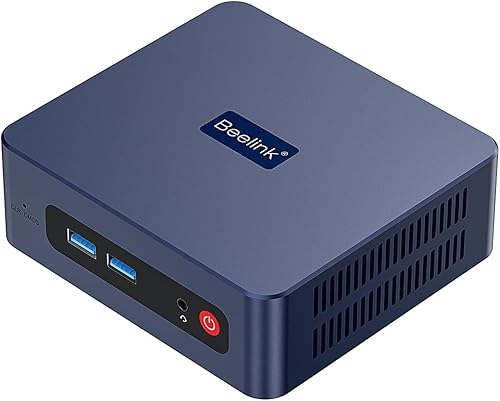
- AMD Ryzen 3 3200U, 2 cores and 4 threads
- 16GB DDR4 RAM and 500GB NVMe SSD
- Two HDMI outputs
- Wi-Fi 5, Bluetooth 5.0 and Gigabit Ethernet
More installed memory and storage suit buyers who want to avoid an immediate hardware upgrade. The older two-core processor makes this a choice for lighter office work.
Pros
- 16GB RAM already installed
- 500GB NVMe SSD
- Supports two displays
Cons
- 2-core, 4-thread processor
- Extra RAM does not replace processor capacity
The Beelink SER3 suits lighter office users who want more memory and storage without opening the computer soon after buying it. 16GB RAM and a 500GB NVMe SSD come installed, giving it a different balance from the other picks.
The trade-off is its Ryzen 3 3200U processor, which has 2 cores and 4 threads. More memory helps keep apps available, but it doesn't make a busy processor finish work faster.
Choose it for documents, email, web tools and a modest collection of local files. Skip it if your work includes frequent large spreadsheet calculations, demanding exports or several processor-heavy apps running together.
Two HDMI outputs support a dual-screen desk, and four USB 3.2 ports cover several wired accessories. Windows 11 Pro is preinstalled, with Wi-Fi 5, Bluetooth 5.0 and Gigabit Ethernet for connections.
There's still room to expand later: memory supports up to 32GB, with NVMe and additional 2.5-inch SATA storage options. Its appeal remains the starting configuration, so compare the whole computer rather than choosing it solely for the memory figure.
How much processor power and memory does office work need?
Choose hardware for the apps you run together, rather than the easiest task you do. A short email session and a full workday with calls, shared files and browser apps place different demands on a computer.
Write down your normal work stack before buying. Include the apps that stay in the background, such as cloud storage, messaging, security tools and a work VPN.
Choosing a mini PC for home office multitasking
For light documents and browsing, 8GB can be enough if you keep the workload modest. For calls alongside several work apps and many tabs, 16GB is a more comfortable target.
Use your current computer as a guide if possible. Open your usual work apps and check Task Manager during a busy period to see whether memory or processor use stays close to full.
Memory and processor capacity solve different problems. More RAM helps when open apps compete for space, while a stronger processor matters when calculations, exports or other active jobs keep the computer busy.
Don't buy a maximum-memory upgrade just because a computer supports it. Fit the upgrade to your actual apps, and read our guide to upgrading mini PC RAM before choosing modules.
When should you choose a different class of computer?
Choose a more capable system if your main work involves large creative projects, complex 3D work or demanding local workloads. These six configurations make more sense as office desktops than as substitutes for a workstation.
Check the requirements of any specialist software before ordering. Employer-managed tools may also require specific operating system features, security settings or approval from your IT team.
A mini PC also needs a separate screen and input devices. If you regularly work away from your desk, include the effort of moving and reconnecting that equipment in your decision.
How much storage should you plan for?
Choose storage based on what must stay on the computer, including apps and synced work folders. Documents alone need much less room than local video, photo libraries or large project files.
Cloud storage doesn't always mean files take no local space. Sync settings can download entire shared folders, so review what your work account keeps offline before choosing a drive capacity.
Leave room for operating system updates, temporary files and new software. A drive that barely holds your current files leaves little room for normal growth.
An extra internal drive can separate large files from the system drive, but it isn't a backup. Keep a separate recovery copy of important work so a hardware failure or accidental deletion doesn't take everything with it.
Before adding storage, confirm the drive interface, physical size and supported capacity. M.2 describes a form factor, and a SATA M.2 drive isn't automatically interchangeable with an NVMe drive.
How many screens should your mini PC support?
Choose outputs that match your monitors, then check resolution and refresh rate across the whole connection. Having enough sockets is only the first part of building a useful display setup.
Two screens often cover office work well: one for the current task and one for reference material. A third makes sense when you need another window visible often enough to justify the desk space.
A USB-C socket doesn't always carry video on every computer or accessory. For these picks, use the stated video-capable output and a cable or adapter that supports the display mode you want.
Adapters can also work in only one direction. Check the computer's output and the monitor's input before choosing one, especially when mixing HDMI and DisplayPort.
After connecting the screens, set them to extend the desktop rather than duplicate it. Arrange their positions in display settings and adjust text scaling so you can read comfortably without leaning toward the screen.
Our mini PC setup guide covers the basic monitor and keyboard connections.
Should you mount a mini PC behind your monitor?
Mount the computer when clearing desk space matters more than easy port access. A VESA bracket helps only if it fits the monitor and leaves room for cables, airflow and the existing stand.
Several picks include mounting hardware, but check the complete arrangement before attaching anything. Monitor arms may already occupy the mounting holes, and a bracket can place the computer close to a wall.
Connect frequently used cables before securing the PC. Leave enough slack for monitor height changes, and avoid letting heavy adapters hang from the computer's ports.
Keep vents clear and make sure the power button remains reachable. Our guide to mounting a mini PC behind a monitor explains the fit checks.
Should your office mini PC use Wi-Fi or Ethernet?
Use Ethernet when a cable is practical, especially for calls and regular transfers to local network storage. Wi-Fi is useful when the desk is far from the router or a cable would cross a walkway.
All six picks offer both connection types. Your router placement, walls and local wireless traffic still affect the connection you get at the desk.
Faster Ethernet ports don't make an internet plan faster than its service limit. Their main benefit appears when the other network equipment and local devices support the same speed.
Two Ethernet sockets also don't improve ordinary browsing by themselves. Buy for dual-network use only when you know what each connection will do.
Before blaming the computer for poor calls, check the connection at the actual desk location. Moving the router or using a wired connection can solve a network problem that extra processor power won't fix.
What should you do before the first workday?
Complete updates, account setup and peripheral checks before depending on the mini PC for a full day. Set aside time to resolve small issues without a meeting or deadline approaching.
Start with the supplied power adapter, a directly connected monitor and basic input devices. Once that setup works, add hubs, extra screens and other accessories one at a time.
Install operating system updates and restart as needed. Confirm activation where applicable, then get apps and drivers from their official sources.
Set up your work account, VPN and file access, and check that the webcam, microphone and speakers use the correct devices. Make a practice call and open the files you'll need for normal work.
Configure screen locking and backups before copying over your only set of important documents. Keep recovery details somewhere you can access if the computer won't start.
How do you keep a home office mini PC running well?
Keep air vents open and work files backed up. Small cases need clear airflow, and a compact desktop deserves the same basic care as a larger computer.
Place it on a firm surface away from loose paper and fabric. A tidy desk can still block cooling if the computer sits tightly between a wall and a stack of folders.
Shut down and unplug the system before cleaning the outside. Remove surface dust gently, and follow the manufacturer's directions before opening the case or cleaning internal parts.
Fan noise can rise during updates, calls or demanding jobs. If noise matters near your microphone, our guide to mini PC fan noise explains what affects it.
Investigate a sudden change in heat, noise or stability instead of covering the computer to quiet it. Keep software current and review unnecessary startup apps if background activity keeps growing.
Which buying mistakes cause the most trouble?
The biggest mistake is buying one attractive spec without checking the whole setup. Memory, processor capacity, display connections and software must work together for your desk.
- Choosing by RAM alone: more memory won't compensate for a processor that doesn't suit your work.
- Counting ports without naming devices: include your webcam, headset receiver, external drive and printer before deciding whether you need a hub.
- Assuming all USB-C connections behave alike: confirm video and power support for each device, cable and dock.
- Expecting one-cable power automatically: Power Delivery support still needs compatible equipment and adequate power.
- Ignoring upgrade access: mounting the computer may make a later memory or storage change less convenient.
- Forgetting the full desk: include a suitable monitor, keyboard, mouse, audio setup and cables in your plan.
Which mini PC for home office use should you choose?
Choose the Bosgame E5 Plus when you want a flexible office computer and are willing to add memory as your workload grows. Choose Acemagic for document work spread across screens, or Kamrui when mounting and wired accessories shape the desk.
Pick the GMKtec G3S for lighter office tasks with existing HDMI monitors, after confirming the operating system. Choose the Bosgame E5 11 Pro when your office plans include network projects and internal expansion.
Choose the Beelink SER3 when avoiding an immediate upgrade matters more than processor capacity. Its installed memory and storage suit lighter work, while demanding multitasking calls for a different balance.
Before ordering your mini PC for home office use, match the exact configuration to your work apps and monitor connections. If Windows is your main requirement, compare the options in our Windows 11 mini PC guide.
Our top 3 picks at a glance
-
1
-
2
-
3
Frequently asked questions
What should you look for in a mini PC for a home office?
Match the processor, memory and connections to your busiest normal workday; check the apps you use together, your monitor inputs and your wired accessories, then consider upgrade access and storage needs. A compact computer only saves hassle if it connects to the equipment you already use.
Is 8GB RAM enough for a home office mini PC?
8GB can handle email, document editing and light browser use; choose 16GB as a more comfortable target if you keep a video call, several apps and many tabs open together. Both Bosgame models here support memory expansion, but you should confirm compatible modules and the installed arrangement before ordering an upgrade.
Can a mini PC run two monitors?
Yes, all six picks support at least two displays; the GMKtec G3S and Beelink SER3 have two HDMI outputs, while the other four support three displays through HDMI, DisplayPort and USB-C video. Match each monitor input to an output, and check cable support for your chosen resolution and refresh rate.
Do these mini PCs include Windows?
Five picks include Windows 11 Pro: both Bosgame models, Acemagic, Kamrui and Beelink; confirm the GMKtec G3S operating system before buying if Windows is essential for your work apps. Our guide to checking Windows on a mini PC explains what to confirm before you set up your desk.


