Best Mini PCs for Home and Office: A Buyer's Guide
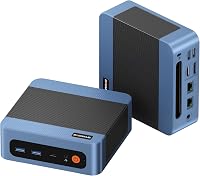
The Bosgame E5 Plus is the best mini PC here for a growing home office, with expandable memory, extra storage options and 3 display outputs. Choose the GMKtec G3S for a simple dual-HDMI desk or the Kamrui AK1PLUS for 16GB memory from the start.
On this page (12 sections)
- Which is the best mini PC for your home or office?
- Best mini PC picks for different needs
- What each mini PC does best, and who should skip it
- How to choose a mini PC around your actual work
- Will a mini PC fit your desk and work habits?
- Are these mini PCs suitable for gaming or creative work?
- How should you set up a new mini PC?
- How do you keep a mini PC cool and useful?
- How much power does a mini PC use?
- Which common buying mistakes should you avoid?
- Which mini PC should you choose?
- Related mini PC guides
The Bosgame E5 Plus is our best mini PC pick for a growing home office, with room to expand memory and storage as your needs change. Choose around your daily apps and existing monitors, then check what you'll need to connect everything.
The GMKtec G3S suits a simple desk with two HDMI screens. The Kamrui Pinova P1 fits mixed monitor connections, while the Kamrui AK1PLUS gives you more memory from the start.
GoodsTopia compared the specifications and features of these 4 compact desktops. The recommendations focus on everyday work, useful connections and upgrade options.
For more choices centered on work, see our guide to mini PCs for home office use. If you're new to the category, what a mini PC can and cannot do explains where these small computers fit.
Which is the best mini PC for your home or office?
The Bosgame E5 Plus is the strongest starting point for buyers who expect their desk setup to grow. Its accessible memory slots and extra storage slot give it a clear expansion route.
Choose the GMKtec G3S if your work is mostly documents, email and browsing across two HDMI screens. It fits buyers who want a straightforward small desktop rather than several kinds of video output.
The Kamrui Pinova P1 makes sense when your monitors use different connections and you want Windows included. The Kamrui AK1PLUS suits light office work where keeping several apps open matters more than processor-heavy tasks.
None of these should be your default choice for demanding gaming, large creative projects or specialized software with dedicated graphics requirements. Start with the program's requirements before choosing a small computer for those jobs.
Best mini PC picks for different needs
Choose the model that matches your workload and monitor connections, then use the scores to compare its wider feature set. A higher score doesn't make an unused port more valuable to your desk.
| Mini PC | Score | A fit for | Processor | Memory and storage | Displays |
|---|---|---|---|---|---|
| Bosgame E5 Plus mini PC | 8.9 | A growing home office | AMD Ryzen 3 5400U, 4 cores and 8 threads | 8GB DDR4, 256GB SATA SSD; two SODIMM slots and an extra M.2 NVMe slot | Up to 3 via HDMI, DisplayPort and USB-C |
| GMKtec G3S mini PC | 8.5 | Everyday work on two HDMI screens | Intel N95, 4 cores and 4 threads | 8GB DDR4, 256GB M.2 2242 SSD | 2 HDMI outputs, up to 4K at 60Hz |
| Kamrui Pinova P1 mini PC | 8.4 | Desks with mixed monitor connections | AMD Ryzen 3 Pro 7330U, 4 cores and 8 threads | 8GB RAM, 256GB M.2 SSD | Up to 3 via HDMI, DisplayPort and USB-C |
| Kamrui AK1PLUS mini PC | 8.2 | Light work with several apps open | Intel Celeron N5095, 4 cores and 4 threads | 16GB LPDDR4X, 256GB M.2 2280 SSD | 2 HDMI outputs, up to 4K at 60Hz |
Before comparing processors, write down the apps you use together and the connections on your monitors. That short list can rule out a poor fit faster than a long specification sheet.
What each mini PC does best, and who should skip it
The main differences are expansion, included memory and display connections. Use the individual recommendations below to decide which tradeoff fits your desk.
Bosgame E5 Plus mini PC: choose it for a growing desk
The Bosgame E5 Plus is the best fit here if you want to start with a modest configuration and add capacity later. Its two SODIMM slots support up to 64GB RAM.
The included drive is an M.2 2280 SATA SSD. A separate M.2 2280 NVMe PCIe 3.0 x4 slot lets you add storage without first replacing that drive.
Its mixed video outputs suit a workspace with a document screen, a reference screen and a third display for messages or dashboards. Each supports up to 4K at 60Hz.
Two 2.5 Gigabit Ethernet ports also distinguish it from the others. They suit buyers with compatible network equipment or a specific need for separate wired connections, rather than anyone who simply wants faster Wi-Fi.
Windows 11 Pro is included, and Ubuntu is supported. That makes it a practical choice for a home office that needs Windows now but may use Linux later.
Skip it if you need more memory immediately and don't want to open the case. The included 8GB is a starting capacity, so allow for an upgrade if you routinely combine calls, large documents and many browser tabs.
Also skip choosing it just for its highest supported memory capacity. Routine office work doesn't require filling both slots to the maximum.
GMKtec G3S mini PC: choose it for a simple dual-screen desk
The GMKtec G3S suits a browser-based workday with email, documents and occasional video calls. Its two HDMI 2.0 outputs make it a clear choice when both monitors already use HDMI.
Its connections include USB 3.2, Gigabit Ethernet, Wi-Fi 5 and Bluetooth 5.0. That covers common wired accessories and wireless input devices without requiring a complex setup.
Wake on LAN, PXE boot, RTC wake and auto power on offer options for managed or scheduled use. Most home buyers can leave those features alone unless they have a specific task for them.
GMKtec provides a 3-year warranty for mini PCs bought starting in October 2026. It covers complete-unit returns and replacements in year 1, followed by replacement of major components in years 2 and 3.
Skip it if your work requires 3 directly connected monitors. The mixed-output models are a better match for that plan.
Buyers with memory-heavy workflows should also choose a configuration with more RAM or confirmed expansion options. The G3S configuration here starts with 8GB, so keep its intended workload modest.
Kamrui Pinova P1 mini PC: choose it for mixed monitor connections
The Kamrui Pinova P1 suits a desk that combines HDMI, DisplayPort and USB-C video connections. Its Ryzen 3 Pro 7330U makes it worth considering for office apps alongside that flexible screen layout.
Windows 11 Pro is included, and Linux is supported. Four USB 3.2 ports give you places for a keyboard, mouse receiver, webcam and another wired accessory.
Its network connections are Gigabit Ethernet and Wi-Fi 5, with Bluetooth 4.2 for compatible wireless devices. An included VESA bracket offers another placement option if desk space is tight.
Choose it when its connections solve an existing desk problem, such as pairing an HDMI screen with a DisplayPort monitor. Count the cables you already have before deciding.
Skip it if a confirmed memory expansion route is central to your plan. The Bosgame gives you a clearer path, while this P1 configuration should be judged around its included capacity.
The processor's Pro name also doesn't settle workplace compatibility. If this is for an employer-managed desk, ask IT about required software, remote access and device policies before buying.
Kamrui AK1PLUS mini PC: choose it for more memory from day one
The Kamrui AK1PLUS suits buyers who want 16GB memory already installed for everyday multitasking. Think several documents, browser windows and a messaging app, rather than a heavy rendering workload.
Its storage options are another reason to consider it. It supports an M.2 SATA or NVMe SSD up to 2TB, plus an additional 2.5-inch SATA SSD or HDD up to 2TB.
The M.2 route may involve replacing the included drive. Plan how you'll move Windows and your files before swapping a system drive.
Four USB 3.2 ports, Gigabit Ethernet, Wi-Fi and Bluetooth cover common desk accessories. Its two HDMI outputs suit a matched pair of HDMI monitors.
Skip it if your main work is limited by processor speed. Extra RAM helps keep more work open, but it doesn't turn the Celeron processor into a workstation chip.
Don't choose it on the assumption that its memory can be expanded later. Buy around the included capacity unless you have confirmed a supported upgrade route.
How to choose a mini PC around your actual work
Match the computer to the busiest part of your normal day, not just the easiest task you perform. A PC used for email alone has different needs from one running a meeting, spreadsheet and browser tools together.
What should the best mini PC for your workload prioritize?
For browser-based work, prioritize enough RAM and the right screen connections. For tasks that make the computer calculate, export or process files, give the processor more weight.
Core counts and clock speeds help describe a processor, but they don't provide a full comparison across different chip families. Avoid choosing solely because one number is larger.
A useful starting point is your current computer. Check memory use while your usual apps are open, and note whether delays happen during app switching, file loading or long calculations.
High memory use points toward more RAM. Long waits during a calculation or export call for a closer look at processor requirements.
If the software publisher recommends a dedicated graphics card, begin with a different class of computer. Adding more memory to one of these mini PCs won't replace that requirement.
For a fuller breakdown of the parts, use our guide to choosing a mini PC.
Decide whether 8GB gives you enough room
8GB suits a lighter workload; 16GB gives more room for overlapping tasks. Neither capacity guarantees a good fit if the processor or software requirements are wrong.
A desk used for bills, email and a few documents can be well suited to a modest configuration. A workday with a video call, shared presentation and many active browser tools needs more room.
Don't count browser tabs alone. A static article and a web-based design tool can place very different demands on memory.
For a shared family PC, consider how many people leave accounts and apps open. Signing out unused sessions can reduce clutter, but a fuller memory configuration may still be the better starting point.
When planning an upgrade, check the memory type, supported capacity and access instructions. Our guide to whether you can upgrade mini PC RAM explains the differences that matter.
Size storage around files, not the advertised total
All 4 configurations include 256GB storage, with part of that space needed for the operating system, apps and updates. Your usable space for personal files will be lower.
That capacity can suit documents and a modest app collection. Large photo libraries, local video files and several games call for more space or a separate storage plan.
Look at how much space your current files occupy before buying. Allow room for future projects rather than choosing a drive that is nearly full on day one.
Cloud storage can reduce local storage needs, but offline files still use space. Check which folders your sync app keeps on the computer.
Internal expansion is useful, but an extra internal drive isn't a complete backup. Keep important files in another location so a computer failure or accidental deletion doesn't take every copy.
Match displays before buying adapters
The number and type of video outputs must match your screen plan. Check the monitor ends of the cables as well as the connections on the computer.
A USB-C socket doesn't always carry video. Use a confirmed video-capable output and cable, and check the monitor's own input requirements.
Adapter direction matters too. A cable intended to send DisplayPort from a PC to an HDMI screen may not work in the reverse direction.
Support for 4K at 60Hz describes display output, not gaming speed. It also doesn't mean every older cable or adapter will carry that signal.
For a work desk, screen size, text scaling and placement can matter more than maximum resolution. Two readable screens often help more than a third screen placed where you rarely look.
Count accessories and understand network limits
Count every wired device that stays connected, including receivers that are easy to overlook. A keyboard, mouse receiver, webcam and external drive can fill a small computer's USB ports quickly.
The Bosgame has two front USB 3.2 Gen 2 Type-A ports and two additional USB 2.0 ports. Its full-function USB-C connection supports data, DisplayPort video and PD 3.0 functionality.
Put simple input devices on slower USB connections where practical. Reserve faster ports for external storage and other devices that benefit from higher transfer rates.
Don't assume USB-C power features let you discard the supplied power adapter. Use the included adapter unless the computer's instructions confirm your proposed power setup.
For networking, a faster Ethernet port helps only when the rest of the connection supports it. Your router, switch, cables, destination device and internet plan can each set a lower limit.
A wired connection is worth considering for a desk that relies on long calls or large file transfers. If you use Wi-Fi, placement behind a screen or inside furniture may affect reception.
Confirm Windows and workplace software
Windows 11 Pro is included with the Bosgame and Pinova P1 configurations here. Confirm the operating system for the G3S and AK1PLUS before buying if you need a ready-to-use Windows machine.
An included operating system doesn't mean your paid office apps are included. Check your existing software accounts and licenses before moving from an older computer.
For employer use, confirm support for required apps, remote access and security tools. Some organizations restrict which devices can connect to their systems.
If you plan to use Linux, check the distribution's hardware guidance and the software you need. Support for Linux doesn't mean every Windows app has a direct replacement.
Our guide to mini PCs with Windows 11 explains what to check before choosing a Windows configuration.
Will a mini PC fit your desk and work habits?
Plan space for airflow, cables and the power adapter as well as the computer. A tiny case can still create a crowded desk if its connections face the wrong way.
The Bosgame measures 5.04 x 5 x 1.69 inches. The Pinova P1 measures 5.06 x 5.06 x 2.01 inches, and the AK1PLUS measures 5.04 x 5.04 x 2.05 inches.
Leave enough space to insert a USB drive and reach the power button. A position that hides every cable may also make daily access awkward.
All 4 include a VESA mount. Check monitor mounting holes, stand clearance and whether a monitor arm already uses the mounting points.
Behind-screen placement works best when the vents stay clear and the cables can move without pulling. See how to mount a mini PC with VESA before choosing that layout.
A small computer is portable between desks, but it still needs power, a screen and input devices. If you need to work away from a desk, a laptop may fit better.
Fan noise also deserves attention in a quiet room. Our mini PC fan noise guide explains how workload and placement affect what you hear.
Are these mini PCs suitable for gaming or creative work?
Choose these models mainly for everyday computing and office tasks. Consider games or creative apps only after checking the requirements of the exact software you use.
The Bosgame and Pinova P1 use integrated AMD graphics. The G3S and AK1PLUS use integrated Intel graphics.
Integrated graphics can suit lighter work, but screen resolution support doesn't guarantee game performance. A computer can output a sharp desktop while struggling with a demanding 3D scene.
For photo work, consider file sizes, layers and how often you export batches. Occasional edits and a large daily workflow place different demands on the same computer.
For video work, check the editing app's guidance for your footage format, effects and export needs. Don't buy on a broad claim that a PC supports editing.
If gaming or creative work is your main reason to buy, choose around that workload first. Compact size should come after the required processor, graphics and memory capabilities.
How should you set up a new mini PC?
Connect the essentials first, complete system updates, then add the rest of your desk. This makes connection problems easier to identify and keeps the first setup manageable.
- Place the computer on a firm surface with open space around its vents.
- Connect one monitor directly, plus a keyboard and mouse.
- Attach the supplied power adapter and connect to your network.
- Complete the operating system setup and available system updates.
- Check activation if Windows is included.
- Add other monitors, accessories and your regular apps.
- Set up backups before moving your only copies of important files.
Keep the old computer available until your files and apps are working on the new one. Copy files first, confirm that they open, then decide when to clear the old device.
With multiple monitors, use display settings to arrange the screens in their physical order. Choose extend mode for separate workspaces rather than duplicating the same image.
Set a comfortable text size and check the refresh rate on each screen. If a display behaves oddly, try a direct connection before adding a dock or adapter.
Save recovery information and software account details somewhere you can reach without this computer. Our mini PC setup guide walks through the connections and first steps.
How do you keep a mini PC cool and useful?
Keep vents clear, maintain backups and remove unnecessary startup apps. These habits support daily use without requiring frequent hardware changes.
Avoid soft surfaces, enclosed drawers and stacks of papers around the case. Warm air needs a path out, especially if the computer sits behind a monitor.
Check vents for dust from time to time. Shut down and unplug the computer before external cleaning, and follow its care instructions before opening the case.
Keep liquids and cleaning sprays away from ports. Don't treat a louder fan as a reason to change firmware settings at random.
Check whether an update, backup or demanding app is running before assuming a fault. If heat or shutdowns continue, our guide to mini PC overheating and crashes explains the next checks.
For storage care, review large downloads and unused apps before the system drive becomes crowded. Keep backups separate from the files you use every day.
How much power does a mini PC use?
Electricity use depends on the whole computer and its workload, not just the processor's power figure. Displays and other desk equipment also contribute to the total.
For a meaningful comparison, use whole-system wattage under similar tasks. Idle use, video playback and sustained processing are different conditions.
At home, set sensible sleep and display-off times. For a work computer that needs remote access or overnight jobs, check those requirements before changing sleep settings.
Our mini PC power consumption guide explains how to turn wattage and daily hours into an estimate for your own use.
Which common buying mistakes should you avoid?
Avoid choosing from a single headline number. Memory, processor, storage and connections need to work together for your desk.
- Choosing RAM alone: More memory helps multitasking, but it doesn't replace processor speed for demanding work.
- Confusing storage with memory: A larger SSD holds more files; RAM holds active work.
- Assuming every M.2 drive fits: Check drive length, SATA or NVMe support, and the available slot.
- Buying around future upgrades: Include the effort of installation, file migration and compatible parts in the decision.
- Assuming accessories are included: Count the screens, cables, input devices and other equipment you still need.
- Treating multiple network ports as faster internet: Use them for a defined network need.
- Ignoring operating system details: A model name alone doesn't confirm the software included with a configuration.
Before ordering, compare the exact configuration against your written app and connection list. One mismatch, such as the wrong monitor output, can matter more than a feature you'll never use.
Which mini PC should you choose?
The best mini PC for you is the one that covers your busiest workday with the fewest compromises. Make the final choice using the needs you already know.
Choose the Bosgame E5 Plus if you want a clear memory and storage expansion path. It is the strongest fit here for a desk that may grow.
Pick the GMKtec G3S for routine work with two HDMI monitors. Choose the Kamrui Pinova P1 when mixed display connections and included Windows fit your setup.
Choose the Kamrui AK1PLUS if you want more memory immediately for light multitasking. Don't choose it as a shortcut to processor-heavy performance.
For a tighter budget, compare our best budget mini PCs guide. If your required software or upgrades point toward a larger machine, read mini PC vs desktop before committing.
Related mini PC guides
Use the next guide to resolve the decision you still have left. The comparisons below cover computer type, Windows, placement and running costs.
- Mini PCs for home office use
- How to choose a mini PC
- Best budget mini PCs
- Mini PCs with Windows 11
- What a mini PC can and cannot do
- Mini PC vs desktop
- Mini PC vs laptop
- Mini PC power consumption
- How to mount a mini PC with VESA
- Are mini PCs quiet?
Frequently asked questions
What should I look for in a mini PC?
Choose a mini PC around your daily apps, monitor connections and storage needs. Check the processor and RAM first, then count the video and USB ports your desk requires.
Confirm the included operating system and any upgrade options before choosing a configuration, especially if you expect your workload to grow.
Is 8GB of RAM enough for a mini PC?
8GB can cover email, documents and light browsing, but 16GB gives more room for several apps and browser tabs at once. Video calls alongside office software can increase memory use.
If your workload may grow, choose more memory now or a computer with a clear RAM upgrade path.
Can a mini PC run two monitors?
Yes, all 4 mini PCs here support at least two monitors. The GMKtec G3S and Kamrui AK1PLUS use dual HDMI, while the Bosgame E5 Plus and Kamrui Pinova P1 offer mixed video connections.
Match each screen to a suitable output and cable, including support for your chosen resolution and refresh rate.
Do mini PCs come with Windows?
Some mini PCs include Windows, while others require you to supply an operating system. The Bosgame E5 Plus and Kamrui Pinova P1 configurations here include Windows 11 Pro.
Confirm the included system for your chosen configuration and read our guide to mini PCs with Windows 11 before ordering.
Are mini PCs good for office work?
Mini PCs suit office work when their memory, processor and ports match your programs and desk. Documents, email, browser tools and video calls are sensible uses for this group.
For a work-focused comparison, read our guide to mini PCs for home office use and check your employer's software requirements.