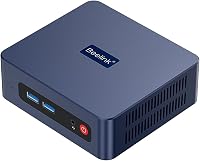
Mini PC vs Desktop: Which Is Better for Home Use? (November 2026)
For a mini PC vs desktop choice, pick a mini PC for a small home workspace and a tower when its connections, service access and included gear suit your desk. Match the exact computer to your software before choosing.
On this page (10 sections)
- Mini PC vs desktop: which fits a home desk?
- Which of these three computers should you shortlist?
- How should you compare performance and software?
- How much memory, storage and upgrade room do you need?
- Which ports matter for monitors and accessories?
- What else do you need for a working setup?
- Is a mini PC quieter or cheaper to run?
- What does the side-by-side comparison tell you?
- What mistakes should you avoid before ordering?
- Mini PC vs desktop: which should you buy?
In a mini PC vs desktop choice, buy a mini PC for everyday work in a small space, or a tower when its connections and confirmed expansion options better suit your plans. A mini PC is a desktop computer too; here, “desktop” means a traditional tower.
Start with your software, monitor and available space. Case size alone won't tell you how much work a computer can handle or which parts you can replace.
The Bosgame E5 Plus suits a growing home office, while the GMKtec G3S suits simpler daily tasks. The HP Desktop Tower 290 G9 makes sense for a workstation that needs its included accessories or older display connection.
GoodsTopia compared these configurations for home use. For the basics, see what a mini PC can and cannot do.


Mini PC vs desktop: which fits a home desk?
A mini PC usually fits a small workspace better, while a tower suits a desk with a clear place beside or underneath it. Measure the whole setup, including cables and power equipment.
A compact computer loses some of its space advantage if adapters, external drives and a USB hub cover the desk. Plan where those items will sit before choosing a case.
The HP tower measures 11.92 x 6.1 x 13.27 inches. Allow extra clearance for cable bends and ventilation, and avoid a closed cabinet that traps warm air.
Both mini PCs include VESA mounts with screws. Our mini PC VESA mounting guide explains the fit checks, including whether your monitor arm already uses the mounting holes.
A hidden computer should still be reachable. Check that you can press its power button, plug in removable storage and disconnect cables without taking the display apart.
Mini PC vs desktop for everyday home tasks
Either format can handle routine home computing when the configuration meets your needs. Email, documents, online shopping and streaming are different demands from video editing or running several large programs together.
Think about your busiest normal hour: perhaps a video call, a spreadsheet, a PDF and several browser tabs. Choose for that overlap, rather than the lightest task you'll do.
If you mainly use browser tools and store files online, a basic mini PC can be enough. Read whether mini PCs are worth it for home use if you're weighing the space savings against their limits.
Which of these three computers should you shortlist?
Shortlist Bosgame for growth, GMKtec for simple tasks and HP for an existing office workstation. Each serves a different buyer, so start with the setup you need.
Bosgame E5 Plus for a growing home office
The Bosgame is the strongest fit here if you want a compact computer with clear memory and storage expansion options. Its Ryzen 3 5400U has 4 cores and 8 threads, with a boost clock up to 4.0GHz.
Choose it if you expect your file collection or mix of applications to grow and are willing to fit compatible upgrades later. Our Bosgame E5 Plus mini PC review covers this model in more detail.
Skip it if your main goal is demanding gaming or graphics work that requires a dedicated GPU. More memory can help supported workloads, but it doesn't turn integrated graphics into a separate graphics card.
GMKtec G3S for a straightforward home computer
The GMKtec fits a desk used for web browsing, documents and entertainment. Its Intel N95 has 4 cores and 4 threads, reaching up to 3.4GHz.
Choose it when your software needs are modest and you want a compact system without building a larger workstation. Its two-screen connection layout is useful for keeping a reference document beside your main work.
Skip it for large creative projects or if your plan depends on a particular future upgrade. Confirm component support before treating it as a system you'll expand.
HP Desktop Tower 290 G9 for an established workstation
The HP suits buyers who have room for a tower and want its practical office connections. Its Core i3-13100 identifies the processor more clearly than a broad description such as “13th-generation Intel.”
Choose it when keeping a VGA monitor or receiving basic input devices solves a real setup need. Skip it if freeing desk space is your main goal or you expect a ready-made gaming tower.
The larger enclosure isn't proof that a particular graphics card, power supply or storage upgrade will fit. Confirm those details before buying around a future project.
How should you compare performance and software?
Match your main programs to the exact configuration, then allow room for other apps running beside them. Clock speeds across different processor families aren't a reliable performance ranking.
Check the recommended requirements for the programs you use most. Minimum requirements describe basic support and may leave little room for a call, browser and other background work.
All three use integrated graphics. Support for a high-resolution display means the computer can output that image; it doesn't guarantee performance in demanding games, 3D work or effects-heavy editing.
Operating system details also matter. Bosgame comes with Windows 11 Pro and supports Ubuntu, while the HP includes Windows 11 Home and access to web-based Office apps.
Web-based Office isn't the same package as full installed desktop Office applications. Check whether your work needs offline access, particular features or separate software licenses.
Confirm the GMKtec's included operating system before ordering if Windows is essential. Our guide to whether mini PCs come with Windows explains the checks.
How much memory, storage and upgrade room do you need?
Choose capacity for your actual workload and files, with a confirmed upgrade path if you expect growth. All three configurations start with 8GB RAM and a 256GB SSD.
For light use, that can be a workable starting point. If you regularly switch among several substantial apps, consider a configuration with more memory or a supported upgrade.
Storage needs depend heavily on what stays on the computer. Documents take far less room than a large photo library, downloaded video collection or several big games.
The Bosgame includes a SATA drive and has a separate M.2 2280 NVMe PCIe 3.0 x4 slot for added storage. Its memory support is documented, making expansion easier to plan.
For the other two computers, confirm supported capacities, slot availability and access before ordering parts. An M.2 drive's physical length and connection type both matter; matching only the term “M.2” isn't enough.
Our guide to how to choose a mini PC explains how these parts affect the decision. Keep a separate backup even if you add a second internal drive.
Which ports matter for monitors and accessories?
Match the computer's outputs to the screens you already own, then count the accessories you'll connect at once. This avoids adapters and hubs you could have planned around.
The Bosgame supports three displays at up to 4K and 60Hz through HDMI 2.0, DisplayPort and USB-C video. The GMKtec supports two displays at that resolution and refresh rate through HDMI 2.0.
The HP provides HDMI and VGA. VGA can keep an older monitor useful, but check that screen's supported resolution rather than assuming it offers the same display options as a modern digital connection.
USB-C needs particular care because the connector shape alone doesn't promise video output. Use a cable or adapter rated for the display signal and resolution you need.
For accessories, count a keyboard, mouse, webcam, printer and external storage before buying. A hub can help with peripherals, but it won't create graphics support or internal upgrade space.
The Bosgame has two 2.5GbE network ports; GMKtec and HP provide Gigabit Ethernet. Faster local networking helps only when the connected equipment supports it, and it doesn't raise your internet plan's speed.
What else do you need for a working setup?
Plan for a monitor, input devices and the right cables, regardless of case size. Included accessories reduce extra shopping only when they suit your desk.
The HP includes a wired keyboard, mouse and Wi-Fi adapter. Both mini PCs include an HDMI cable and power adapter, so you need to supply your own keyboard and pointing device.
An included HDMI cable covers one suitable connection. A second screen or a different input may need another cable, and a TV-based setup may also need a webcam and microphone for calls.
Place the computer where cables reach without strain, then connect the screen and input devices before starting setup. Our mini PC setup guide walks through the process.
After the first start, install operating system updates, check sound and display settings, and set up backups. Keep account recovery details somewhere you can access if the computer stops working.
Is a mini PC quieter or cheaper to run?
Case size alone doesn't guarantee noise or electricity use. Both mini PCs here have fans, so choose their position with airflow and listening distance in mind.
Fan noise changes with workload and cooling design. Our guide to mini PC fan noise explains why a small computer near your ears may be more noticeable than expected.
Compare whole-computer power use under similar workloads if running costs matter. Processor speed alone won't tell you what the system draws from the wall.
See mini PC power consumption for the factors involved. Sleep settings are useful for a home computer that sits unused for much of the day.
For care, keep vents clear and remove dust according to the computer's instructions. Shut down and unplug it before opening the case, and back up important files before changing hardware.
What does the side-by-side comparison tell you?
Connections and confirmed expansion options separate these configurations more than starting capacity. Use the table to check those differences against your needs.
| Product | Best for | Processor | Memory | Storage | Our score |
|---|---|---|---|---|---|
| Bosgame E5 Plus mini PC | growing home offices | Ryzen 3 5400U, up to 4.0GHz | 8GB DDR4, expandable to 64GB | 256GB SATA SSD, plus an M.2 NVMe slot | 8.9 |
| GMKtec G3S mini PC | simple daily computing | Intel N95, up to 3.4GHz | 8GB DDR4 | 256GB SSD | 8.5 |
| HP Desktop Tower 290 G9 | existing VGA workstations | Intel Core i3-13100 | 8GB DDR4 | 256GB SSD | 6.8 |
The scores reflect fit for this home-use comparison. The HP's lower score doesn't mean its processor is slower; its larger case offers less appeal for a space-saving setup.
If two models meet your software requirements, choose the one that needs fewer compromises in placement, cables and future capacity. Extra ports have little value if you won't use them.
What mistakes should you avoid before ordering?
Don't buy around case size, a processor label or an assumed upgrade. Check the few details that could force you to replace equipment or change your plans.
- Assuming every tower is expandable: Verify the slots, power connections, physical clearance and supported parts for the exact model.
- Confusing display support with gaming ability: Multiple screens and high-resolution video output don't guarantee demanding graphics performance.
- Ignoring storage growth: Leave room for apps, updates and future files rather than filling the drive immediately.
- Mounting before checking access: Make sure the power button, removable storage ports and vents remain usable.
- Treating a second drive as a complete backup: Keep another copy away from the computer so one failure doesn't take both copies.
Write down your essential software, monitor inputs and required peripherals before ordering. That short list is more useful than choosing whichever computer has the largest number in its name.
Mini PC vs desktop: which should you buy?
Pick Bosgame for a compact office that may grow, GMKtec for simple daily computing, or HP for a tower-based workstation with useful legacy connections. Let the task you do most decide which trade-offs are worth accepting.
Choose a different configuration if demanding games, large creative projects or a specific hardware upgrade lead your requirements. None of these should be bought on the assumption that extra memory alone will cover those needs.
For other compact options, start with our mini PC buyer's guide. For your final mini PC vs desktop decision, use our mini PC selection guide to turn your software, screen and space needs into a clear checklist.
Frequently asked questions
Is a mini PC as good as a desktop?
A mini PC can replace a tower for browsing, documents, video calls and streaming; compare the exact processor, memory and software requirements rather than case size. Demanding games, large creative projects and plans for a dedicated graphics card need closer attention to graphics support, cooling and component compatibility.
Which is better for a small desk, a mini PC or desktop?
A mini PC is usually the better fit for a small desk because its case takes less space; a compatible VESA mount can move it behind the monitor. Leave room for cables, ventilation and the power adapter, and make sure you can still reach the power button and everyday ports.
Can you upgrade a mini PC?
Some mini PCs support memory and storage upgrades, but compatibility varies by model; the Bosgame E5 Plus supports up to 64GB RAM through two SODIMM slots and has an additional M.2 NVMe slot. Our mini PC RAM upgrade guide explains what to check before buying memory.
Do mini PCs need a separate monitor and keyboard?
Yes, a normal home desk setup needs a separate display, keyboard and pointing device; the two mini PCs here include an HDMI cable and power adapter, but you'll need your own input devices. The HP tower includes a wired keyboard and mouse; you still need a compatible monitor.
Should I buy a mini PC or a desktop tower?
Choose a mini PC for everyday work in a small space, provided its ports and software support meet your needs; choose a tower when you need its particular connections or have confirmed a useful expansion path. For demanding graphics work, shop by application requirements before deciding on the case style.