5 Best Mini PCs for TV and Living Room Use (November 2026)
The best mini PCs for TV and living rooms include the Bosgame E5 Plus mini PC for growing media libraries, the GMKtec G3S mini PC for everyday TV streaming, and the Kamrui Pinova P1 mini PC for shared living spaces.
On this page (8 sections)
- The best mini PCs for TV use, compared
- Which mini PC works best in a living room?
- How do you choose a mini PC for a TV?
- Where should a living room mini PC sit?
- How should you set up a mini PC with a TV?
- What care keeps a TV mini PC useful?
- Which mistakes should TV mini PC buyers avoid?
- Which mini PC for TV should you buy?
The Bosgame E5 Plus mini PC is our top mini PC for TV use if you want streaming, everyday computing and space to grow a local media library. The GMKtec G3S is the more focused choice for playback, with dual HDMI and AV1 decoding.
A living room PC makes sense when you want a full browser, local files and desktop apps on your television. If you only want a few streaming apps controlled by a remote, first check whether your TV already does everything you need.
For broader options, see our best mini PCs for home and office. If you're deciding whether this type of computer fits your home, start with what a mini PC can and cannot do.
Our picks at a glance
-
1

-
2

-
3

The best mini PCs for TV use, compared
Choose by how you'll use the TV, then compare the connections and included storage. A computer for occasional streaming has different needs from one that holds your videos and doubles as a family desktop.
GoodsTopia compared these configurations by processor, memory, storage expansion, display connections and living room use. The order reflects their overall fit, while the individual recommendations explain when a lower-ranked model makes more sense.
| Product | Best for | Processor | Memory and storage | Video outputs | Our score |
|---|---|---|---|---|---|
| Bosgame E5 Plus mini PC | growing media libraries | AMD Ryzen 3 5400U | 8GB DDR4, 256GB SATA SSD | HDMI, DisplayPort, USB-C | 8.9 |
| GMKtec G3S mini PC | everyday TV streaming | Intel N95, 4 cores | 8GB DDR4, 256GB SSD | 2 x HDMI 2.0 | 8.5 |
| Kamrui Pinova P1 mini PC | shared living spaces | AMD Ryzen 3 Pro 7330U | 8GB RAM, 256GB SSD | HDMI, DisplayPort, USB-C | 8.4 |
| Kamrui AK1PLUS mini PC | multitasking between shows | Intel Celeron N5095, 4 cores | 16GB LPDDR4X, 256GB SSD | 2 x HDMI 2.0 | 8.2 |
| GMKtec G10 mini PC | ready-made media collections | AMD Ryzen 5 3500U | 16GB DDR4, 1TB SSD | HDMI, DisplayPort, USB-C | 7.8 |
Which mini PC works best in a living room?
The Bosgame E5 Plus offers the most flexible starting point, but each alternative solves a different problem. Choose the G3S for straightforward playback, the Pinova P1 for mixed work, the AK1PLUS for included memory or the G10 for included storage.
Bosgame E5 Plus: a mini PC for TV and a growing library
Bosgame E5 Plus mini PC: Best for growing media libraries
- Ryzen 3 5400U, 4 cores and 8 threads
- 8GB DDR4 RAM, expandable to 64GB
- 256GB SATA SSD and a second M.2 NVMe slot
- HDMI, DisplayPort and USB-C video outputs
Add a separate media drive through the second M.2 slot while keeping the included drive for your operating system and apps. This is the most flexible starting point for a TV computer that may later take on more work.
Pros
- Second M.2 NVMe storage slot
- Two SODIMM slots for memory upgrades
- Preinstalled Windows 11 Pro
Cons
- 8GB starting memory may need an upgrade for heavier multitasking
- 256GB included storage needs planning for a local video collection
Buy the E5 Plus if you expect your TV computer to grow beyond streaming. Its Ryzen 3 5400U has 4 cores and 8 threads, making it a sensible fit for the mix of browsing, office apps and entertainment that turns a media box into a shared household computer.
The useful detail is its storage layout: a 256GB SATA SSD plus a separate M.2 NVMe slot. You can keep the operating system on the original drive and add a media drive later, rather than replacing the starting drive immediately.
Memory expansion through 2 SODIMM slots, up to 64GB, gives you another upgrade path. That ceiling is far beyond what a basic TV setup needs, so plan upgrades around actual use rather than filling the slots on day one.
Windows 11 Pro is preinstalled, which removes one setup question for buyers who want familiar desktop software. HDMI provides the TV connection, while the other video outputs leave room for a desk display.
Skip it if you'll never store local media or use desktop apps. Much of its appeal comes from expansion, and a simpler playback setup may suit you better.
GMKtec G3S: straightforward streaming and local playback
GMKtec G3S mini PC: Best for everyday TV streaming
- Intel N95 processor
- 8GB DDR4 RAM and 256GB SSD
- Two HDMI 2.0 outputs supporting 4K@60Hz
- 4K video playback and AV1 decoding
Choose this for browser video, compatible local media and routine living room tasks. Two HDMI connections also let you attach a second HDMI screen without a video adapter.
Pros
- AV1 decoding support
- Two direct HDMI display connections
- Includes a VESA mount
Cons
- 8GB memory favors lighter multitasking
- 256GB SSD leaves limited room for downloaded video
Choose the G3S when playback matters more than building a multi-purpose desktop. Its Intel N95, 8GB of memory and 256GB SSD fit a modest set of apps, browser use and media playback without making storage expansion the center of the purchase.
AV1 decoding is a useful distinction if your video software uses that format. It supports compatible playback, but it doesn't determine which streaming services will deliver their highest resolution to your browser.
The 2 HDMI 2.0 outputs support 4K at 60Hz and simplify connecting a TV plus another HDMI display. That second connection is useful if a small desk monitor shares the computer, though it adds little when you'll only attach one television.
An included VESA mount gives you a way to move the box off the shelf. Check the mounting location before committing to it, especially if a wall bracket already occupies the TV's mounting holes.
Skip this configuration for a large downloaded library or busy desktop use. Its starting memory and drive make more sense when the computer handles a few focused tasks.
Kamrui Pinova P1: one computer for work and entertainment
Kamrui Pinova P1 mini PC: Best for shared living spaces
- Ryzen 3 Pro 7330U, 4 cores and 8 threads
- 8GB RAM and 256GB SSD
- HDMI, DisplayPort and USB-C video
- VESA bracket included
A useful choice when the living room computer also handles documents, email and a separate desk display. Windows 11 Pro is preloaded, and the included bracket gives you a mounting option.
Pros
- Three video output types
- Four USB 3.2 ports for peripherals
- Preloaded with Windows 11 Pro
Cons
- 8GB starting memory
- Blue power lighting may distract in a dark room
Pick the Pinova P1 if the living room is also your occasional workspace. Its Ryzen 3 Pro 7330U has 4 cores and 8 threads, and Windows 11 Pro is preloaded for documents, email and other everyday desktop tasks.
HDMI, DisplayPort and USB-C video connections help when your TV and desk display use different inputs. Decide whether both screens will stay connected or whether you'll move the computer, since repeatedly reaching behind a TV can become awkward.
Four USB 3.2 ports give you connection points for a keyboard receiver, pointing device and external storage. Keep at least one port accessible if you regularly bring files home on a USB drive.
The starting 8GB RAM and 256GB SSD call for a tidy set of apps and files. This is a better fit for light shared use than for keeping several demanding programs running beside a movie.
Skip it for a strictly dark viewing room if visible lighting bothers you. The blue power lighting deserves attention when choosing its position, and the extra display options offer little benefit for a single-purpose TV box.
Kamrui AK1PLUS: more memory for everyday app switching
Kamrui AK1PLUS mini PC: Best for multitasking between shows

- Intel Celeron N5095 processor
- 16GB LPDDR4X RAM and 256GB SSD
- Two HDMI 2.0 outputs
- Supports M.2 and 2.5-inch storage expansion
The included memory gives you more room to keep everyday apps open while using the TV. Storage expansion also makes it useful for buyers who already have a compatible spare drive.
Pros
- 16GB included memory
- Two HDMI 2.0 outputs
- M.2 and 2.5-inch storage expansion
Cons
- Extra memory doesn't make the Celeron processor suited to demanding work
- 256GB included SSD may need expansion for media
Choose the AK1PLUS if you want more included memory for ordinary multitasking. Its 16GB LPDDR4X gives you room for browser tabs and everyday apps, but the Celeron N5095 still defines the kind of work this computer suits.
Think web browsing during a show, email and household admin. Extra RAM doesn't turn it into the right choice for demanding video editing, large creative projects or modern games that need dedicated graphics.
Two HDMI outputs let you connect the TV and a second display directly. This arrangement suits a small desk near the entertainment area, where you can keep work on one screen and use the TV separately.
Storage options are another reason to consider it: the computer supports M.2 expansion and an additional 2.5-inch SATA drive. If you already have a spare drive, check its size and interface before counting it as part of the plan.
Skip it if your main goal is heavier computing rather than keeping more light apps open. For a TV-only streaming machine, choose based on playback requirements instead of treating memory capacity as the deciding factor.
GMKtec G10: more room for files from the start
GMKtec G10 mini PC: Best for ready-made media collections
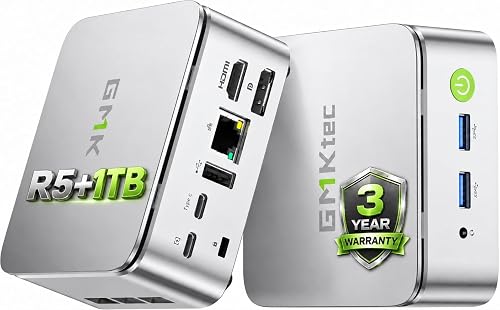
- Ryzen 5 3500U, 4 cores
- 16GB DDR4 RAM and 1TB SSD
- HDMI, DisplayPort and USB-C video
- Supports three displays
The largest included SSD in this group makes the G10 worth considering if you want to copy over a local media collection immediately. Its display options also suit a computer shared between entertainment and desk work.
Pros
- 1TB included SSD
- 16GB included memory
- HDMI, DisplayPort and USB-C video connections
Cons
- Wi-Fi 5
- Extra storage and display connections add little for streaming-only use
Buy the G10 if you want to move a local media collection onto the computer immediately. Its 1TB SSD is the largest included drive here, and 16GB DDR4 memory reduces the need to plan a memory upgrade for ordinary living room use.
This is useful when your collection includes home videos, photos, music and legally obtained downloads. Count the space those files already occupy, then allow room for the operating system, apps and future additions.
The Ryzen 5 3500U and integrated Radeon Vega 8 graphics suit the everyday work and entertainment role described here. Don't choose it from the Ryzen 5 label alone or assume that the processor name makes it the strongest option for every task.
Its HDMI, DisplayPort and USB-C video connections support up to 3 displays. That flexibility helps a shared entertainment and desk setup, but it shouldn't drive the decision if you'll only connect one TV.
Skip it if nearly everything you watch comes from streaming services. The larger SSD is its clearest advantage in this group, and unused storage won't improve stream quality.
How do you choose a mini PC for a TV?
Start with your viewing habits and required apps, then choose the hardware that supports them. Write down what you'll actually run before comparing processor names or expansion limits.
Separate streaming, local playback and media-server work
Streaming mainly needs compatible software, a reliable connection and access to your chosen services. Local playback also needs enough storage and a player that supports your files' video, audio and subtitle formats.
Serving media to other devices is a separate job. Sending an original file across your network can be much lighter work than converting it to a different format, so check your media software's requirements before buying for that role.
None of these configurations should be chosen solely because a description mentions home theater. Match the computer to your files and software, especially if you expect it to play a movie on the TV while serving another room.
Check resolution support beyond the HDMI port
A 4K output and a 4K stream are different things. The desktop can fill a 4K screen while a streaming service sends a lower-resolution picture.
Services can set requirements for subscriptions, browsers, apps and copy protection. Check those requirements for the services you use, rather than assuming a faster processor removes every restriction.
The same care applies to HDR, surround audio and high-refresh-rate gaming. Confirm the whole path through the computer, software, cable, receiver and TV if any of those features is essential.
Choose memory and storage for separate reasons
Memory helps active apps; storage holds files. For one stream and light browsing, an 8GB configuration is a reasonable starting point, while more memory helps when several apps remain open.
A larger SSD matters most for local media, downloaded files and larger apps. It doesn't make an online service send a sharper picture, so streaming-only buyers shouldn't make drive capacity their first filter.
Check the operating system as well as the hardware configuration. Our guide to whether mini PCs come with Windows explains what to confirm before planning the first startup.
Plan how you'll control the computer from the sofa
Keep a keyboard and pointing device within reach. A TV remote may switch inputs and control volume, but it won't replace every desktop control you need for sign-ins, settings or troubleshooting.
A wireless keyboard with a touchpad can reduce the number of devices on the sofa. Check its range from your seat before hiding the computer, since placement behind a TV or inside furniture can affect wireless connections.
Don't assume the TV remote can turn the PC on or wake it. If remote waking matters, confirm the required hardware and settings before making the computer difficult to reach.
Where should a living room mini PC sit?
Use an open shelf or a compatible mount with clear airflow and reachable ports. The best location keeps the computer, power adapter and cables secure without trapping heat.
Measure the whole setup, including the cables
The case is only part of the space requirement. Leave room for plugs, cable bends, the power adapter and access to the power button.
A wall-mounted TV can leave little clearance behind it. Avoid forcing an HDMI connector against the wall or hanging the computer's weight from its cables.
VESA hardware also needs compatible hole spacing, screws and clearance. Our mini PC VESA mounting guide helps you plan around an existing display bracket.
Choose networking for the position behind the TV
Use Ethernet when Wi-Fi is unreliable at the viewing position. Check wireless reception where the computer will actually sit, rather than judging it from a phone elsewhere in the room.
The Bosgame has 2 dual-purpose networking advantages for file-heavy setups: 2 Ethernet ports, each supporting 2.5GbE. The G10 also offers 2.5GbE, while the other picks provide Gigabit Ethernet.
Faster local networking is most useful for moving large files between compatible devices. It won't raise your internet speed beyond your service plan, and ordinary streaming doesn't require choosing the highest network number here.
How should you set up a mini PC with a TV?
Make the first connections while the computer is easy to reach, then mount or hide it after the picture, sound and controls work. Our mini PC setup guide covers the basic connections and first startup.
Connect directly before adding other equipment
Start with the PC connected straight to the TV, plus power, a keyboard and a mouse. Select the matching HDMI input and complete the operating system's setup steps.
Install system updates and use official sources for apps and drivers. Confirm account access and playback before adding a receiver, switch or other device that creates another possible source of picture or sound problems.
Make text readable from your seat
Set a supported resolution and refresh rate, then adjust scaling for viewing distance. Tiny desktop text can make a TV computer unpleasant even when the picture itself looks sharp.
If the desktop edges are cut off, look for the TV's screen-fit, full-pixel or similar setting. A PC input mode, where available, can also help desktop text display clearly.
Use browser zoom for individual websites rather than lowering the screen resolution as your first fix. Check menus, subtitles and playback controls from the sofa before finishing the installation.
Send sound to the right device
Select the TV or connected audio system as the computer's sound output. A working picture with silent playback often calls for checking the output device and volume controls before changing cables.
Begin with ordinary stereo sound, then configure more complex audio if your equipment and software support it. Check dialogue, music and a few familiar files before routing everything through a receiver.
Set sleep and sign-in behavior deliberately
Choose sleep settings that let long videos finish without making the computer stay awake all day. Confirm that your keyboard or mouse can wake it from the seat you'll use.
Keep account security in mind on a shared television. Separate user accounts can keep work files, saved passwords and household viewing activity from mixing.
What care keeps a TV mini PC useful?
Keep airflow clear, software current and important files backed up. A computer hidden behind a TV still needs occasional access for cleaning and maintenance.
Clear dust without blocking the vents
Check vents regularly, especially near carpet, pets or dusty entertainment furniture. Shut the computer down and unplug it before cleaning the outside, following the manufacturer's care instructions.
Don't place objects on the case or push it into a tightly packed cabinet. Leave the power adapter uncovered too, and check that cable ties haven't pulled wires across ventilation openings.
Keep media separate from your only backup
A second internal drive makes file organization easier, but it isn't a separate backup. Keep another copy of irreplaceable photos and home videos on an external device or suitable backup service.
Review free storage occasionally and remove downloads you no longer need. Leave space for system updates instead of filling the drive to its limit.
Reduce background work during viewing
Schedule large downloads, backups and other heavy jobs outside movie time. They can compete for network access or add processor work when you want uninterrupted playback.
If playback stutters, check the network, player and background apps before buying more memory. For a local file, confirm that the player supports its format and that hardware acceleration is enabled where appropriate.
Which mistakes should TV mini PC buyers avoid?
Avoid buying from one headline spec. The connection, software and way you'll use the computer matter more than a large memory figure or an impressive display label.
- Choosing for modern gaming without checking game requirements: these are integrated-graphics configurations, and TV output support doesn't guarantee game performance.
- Treating AV1 as a universal playback promise: it covers a video format, while service access, audio and copy protection remain separate requirements.
- Buying adapters before checking both screens: a direct HDMI connection is often simpler, and USB-C ports don't all serve the same purpose across computers.
- Assuming a small case means silence: cooling behavior and placement matter, particularly during quiet dialogue.
- Hiding the computer too early: finish pairing accessories, checking sleep behavior and confirming playback before mounting it.
- Buying a large drive without a file plan: measure your collection and decide how you'll back it up before choosing capacity.
Which mini PC for TV should you buy?
Choose the Bosgame E5 Plus if you want a TV computer you can expand, particularly for a growing local library. Choose the GMKtec G3S if the main job is straightforward playback and its dual-HDMI arrangement fits your screens.
Pick the Pinova P1 for a shared work-and-entertainment space, the AK1PLUS for more included memory with light everyday apps, or the G10 when having a larger drive immediately matters most.
Before ordering, write down your essential services, display connections and control method. If quiet dialogue is your main concern, read our guide to mini PC fan noise and choose an open placement you can maintain.
Our top 3 picks at a glance
-
1
-
2
-
3
Frequently asked questions
Can you use a mini PC with a TV?
Yes, a mini PC can use a TV as its display through a compatible connection, usually HDMI. Select the matching TV input, choose the TV as the audio output and adjust text scaling for your seating distance; keep a keyboard and pointing device available for setup and account sign-ins.
What should you check before buying a mini PC for a TV?
Check the TV connection, required playback software, available network connection and space around the computer. Confirm that your streaming services support the resolution you want on a PC; also account for the power adapter, keyboard and mouse, since a small computer still needs those parts of the setup.
Is 8GB of RAM enough for a living room mini PC?
Eight gigabytes is a reasonable starting point for one video stream, light browsing and basic media playback. Choose more memory if you keep several apps or many browser tabs open; additional RAM helps with multitasking, but it doesn't replace a capable processor or add support for an unsupported video format.
Can a mini PC stream 4K video?
Yes, provided the streaming service, subscription, playback software, connection and TV all support it. A 4K desktop output doesn't guarantee the resolution of the video inside a browser window; check each service's PC playback requirements before buying a mini PC mainly to watch its shows in 4K.
Will a mini PC be quiet beside a TV?
Fan noise depends on the computer's cooling, workload and placement, so a compact case alone doesn't guarantee quiet operation. Keep vents clear and avoid enclosing the computer in a TV cabinet; our guide to mini PC fan noise explains what matters when the room is quiet.


