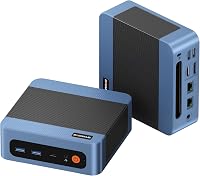
Beelink SER5 Mini PC Review: Ryzen 5 for a Home Desk (November 2026)
The Beelink SER5 is a good fit for home office multitasking, with a Ryzen 5 5500U and 16GB of dual-channel RAM. Choose it for everyday work across multiple apps; confirm the third display connection before planning a 3-screen desk.
On this page (10 sections)
- Who should buy the Beelink SER5?
- Beelink SER5 specs that matter at a home desk
- How to plan your monitors and accessories
- What work and entertainment suit the SER5?
- When should you upgrade RAM or storage?
- How to set up the SER5 for daily use
- How to keep a small desktop running well
- Beelink SER5 vs Mini S12 and SER3
- What to confirm before buying this SER5 configuration
- Should you choose the Beelink SER5?
The Beelink SER5 suits home office multitasking, especially if you move between documents, browser tabs and calls throughout the day. Its Ryzen 5 5500U and 16GB of dual-channel memory give it a clearer role than a basic browsing-only computer.
Choose it for a compact work desk, media playback and occasional light creative work. Buyers focused on demanding games, heavy 3D work or a guaranteed 3-monitor setup should resolve those needs before ordering.
Who should buy the Beelink SER5?
The SER5 is the best fit here for people who keep several work apps open and want room to expand later. It makes sense as a small desktop for a study, shared family desk or home office.
A typical workday might involve a spreadsheet beside a browser, with email and a call app running in the background. For that pattern, prioritize processor capability and usable memory over a slightly larger storage drive.
It also suits buyers who already have a monitor, keyboard and mouse. If you're starting from nothing, include those items and any display adapters in your desk plan.
When the Beelink SER5 is more than you need
For a computer used mainly to check email, fill out forms and watch videos, the SER5's extra processor resources may go unused. The alternatives below cover those simpler roles.
Skip it if you need a portable computer with a built-in screen and battery. A mini PC saves desk space, but moving it still means arranging power, a display and input devices at the destination.
Beelink SER5 specs that matter at a home desk
The key combination is a 6-core processor, dual-channel memory and separate HDMI and DisplayPort connections. The table keeps the main hardware details in one place so you can match them to your work and accessories.
Beelink SER5 mini PC: Best for home office multitasking

- Ryzen 5 5500U, 6 cores and 12 threads
- 16GB DDR4 RAM and 480GB NVMe SSD
- HDMI, DisplayPort and USB-C data port
- Memory expandable to 64GB
Choose the SER5 for a home desk where documents, browser tabs and calls share the workday. Its processor and dual-channel memory make it the strongest multitasking choice among these three configurations.
Pros
- 6-core, 12-thread processor
- Dual-channel 16GB RAM
- HDMI and DisplayPort connections
- Memory can expand to 64GB
Cons
- Integrated graphics limit its appeal for demanding games
- Third display connection needs confirmation
| Spec | Beelink SER5 |
|---|---|
| Processor | AMD Ryzen 5 5500U, 6 cores and 12 threads |
| Processor speed | 2.1GHz base, up to 4.0GHz boost |
| Memory | 16GB dual-channel DDR4, 2 x 8GB |
| Maximum memory | 64GB, 2 x 32GB |
| Storage | 480GB M.2 NVMe 2280 SSD |
| Storage expansion | Additional 2.5-inch SATA hard drive up to 2TB, not included |
| Graphics | Integrated AMD Radeon Graphics |
| Confirmed video connections | HDMI and DisplayPort |
| Additional display claim | Beelink advertises up to 3 displays; third connection needs confirmation |
| Wireless | Wi-Fi 6 and Bluetooth 5.2 |
| Wired network | 2.5Gb Ethernet |
| USB ports | 3 USB 3.2, 1 USB 2.0, 1 USB-C data |
| Audio | 3.5 mm audio jack |
| Operating system | Windows 11 |
Don't choose between processors by their maximum clock speed alone. Core count, software demands and the type of work all matter, and a boost speed isn't a promise of constant operating speed.
The included memory uses both slots. Reaching the maximum therefore means replacing the current pair rather than adding a single module.
How to plan your monitors and accessories
Plan around 2 confirmed video connections, then match each monitor's inputs before buying cables. HDMI and DisplayPort give you a direct route to many desk screens, but a monitor with only HDMI may need an appropriate adapter for the second connection.
Beelink's claim of 3-display support needs one check: how the third screen connects. USB-C is specified for data, so a USB-C-to-HDMI cable is not a safe assumption.
Screen resolution also affects how useful a setup feels. Running a high-resolution desktop and making text comfortable to read are separate tasks, so adjust display scaling after connecting your screens.
For work, set the screens to extend the desktop rather than duplicate it. Put your main app on the screen directly ahead, with reference material or messages on the other.
Count USB devices too, including a webcam, headset receiver, external drive and printer. Our guide to choosing a mini PC explains how to turn that accessory list into a practical port checklist.
What work and entertainment suit the SER5?
Office apps, web use and video playback are its clearest roles. Beelink also describes the SER5 as suitable for photo editing, video editing and light games.
For creative work, the project matters more than the app name. Cropping photos and trimming short clips place different demands on a computer than working with large layered images or complex video effects.
Check the recommended requirements for your software, including plug-ins you rely on. If it calls for dedicated graphics, choose a computer built around that requirement.
For gaming, start with the games you actually want to play. A screen's ability to show a high-resolution desktop doesn't mean the computer can run a demanding game at that resolution.
Skip this model if high detail settings in modern games are the main goal. For a broader view of computer types and uses, see our best mini PCs for home and office guide.
When should you upgrade RAM or storage?
Upgrade to solve a clear limit, rather than filling every available slot or bay at the start. Use your normal apps first and check memory and disk use in Task Manager.
If memory stays close to full during your usual workload, extra RAM may help. If apps are slow while memory use is modest, the cause may instead be processor demand, background activity or a slow network.
The SER5's memory ceiling leaves room for growth, but extra RAM won't turn its integrated graphics into a dedicated graphics card. It also won't fix an unreliable internet connection.
Storage is a separate decision: estimate space for apps, downloads, photos and local video files. Cloud folders can still consume local space when you keep offline copies.
An added SATA drive can hold a media library, but it shouldn't be your only backup. Keep another copy of important files on a separate device or suitable backup service.
Before buying parts, read our mini PC RAM upgrade guide and confirm compatibility with your exact unit. Shut down, unplug power and follow Beelink's instructions before opening the case.
How to set up the SER5 for daily use
Start with one monitor and essential accessories, then add the rest after the computer reaches the desktop. This makes it easier to identify a loose cable or incorrect input if the screen stays blank.
- Place the computer on a firm surface with its vents clear.
- Connect the monitor, keyboard, mouse and power.
- Select the correct monitor input and complete the on-screen setup.
- Install operating system updates and drivers from trusted sources.
- Add your second screen, audio devices and other accessories.
- Set up backups before moving important files onto the computer.
Windows 11 is included in this SER5 configuration, but don't assume that includes paid office software. Check what your apps require before replacing an existing work computer.
Our mini PC setup walkthrough covers the connections in more detail. If the Windows edition matters for your work, read what to check when a mini PC comes with Windows.
Use Ethernet when a wired connection is convenient, especially for large transfers or a fixed work desk. A faster network port only helps when the rest of your network and the other device support the speed.
How to keep a small desktop running well
Clear airflow and routine updates matter more than frequent hardware changes. Keep papers, fabric and loose cables away from vents, and avoid enclosing the computer in a tight cabinet.
If you mount it out of sight, leave access to the power button and connections. Cable strain can loosen a connection, so allow enough slack when moving the monitor or desk.
Check for dust buildup periodically and follow the manufacturer's cleaning instructions. Power down and unplug the computer before cleaning, and keep liquids away from ports and vents.
Don't judge fan behavior from size alone. For a desk used for calls or quiet work, our guide to mini PC fan noise explains the factors that affect what you hear.
If the computer becomes unusually slow, check background apps, free storage and updates before buying upgrades. Repeated crashes or shutdowns deserve attention rather than repeated restarts without investigating the cause.
Beelink SER5 vs Mini S12 and SER3
Choose the SER5 for multitasking, the Mini S12 for a simple dual-HDMI desk, and the SER3 for basic work with more included memory. The alternatives make sense when their particular connections or configuration fit your needs.
Mini S12: for a straightforward everyday desk
The Mini S12 pairs an Intel N95 with 8GB RAM and a 480GB SSD. It suits web use, documents, online classes and media playback when you keep the workload light.
Its included VESA mount and screws help buyers who want to place the computer behind a compatible monitor. Check the mounting space and keep vents open rather than pressing the unit into a cramped gap.
Choose it if your screens both use HDMI and your apps don't need much memory. Skip it if you routinely keep large files and many work apps open together.
SER3: for documents, email and local files
The SER3 combines a Ryzen 3 3200U, 16GB RAM and a 500GB NVMe SSD. Its 2-core, 4-thread processor makes it a basic office option rather than the first choice for CPU-heavy workloads.
Choose it for ordinary desk tasks, two HDMI monitors and Windows 11 Pro. Skip it for regular rendering, large exports or other work that keeps the processor busy for long periods.
Don't let its slightly larger SSD decide the comparison. The small storage difference matters less than choosing a processor suited to the work you'll do each day.
What to confirm before buying this SER5 configuration
Confirm the exact configuration, monitor plan and support terms before ordering. A familiar model name isn't enough when memory, storage or processor options differ.
Check these points against your needs:
- Your most demanding app's recommended hardware requirements.
- Monitor inputs, cables and any adapters needed.
- The connection method if a third display is essential.
- Space for peripherals, power and clear airflow.
- Enough local storage, plus a separate backup plan.
Beelink offers a 3-year warranty and lifetime technical support for this SER5. Read the coverage and service process so you know how to get help if needed.
For broader brand context, read our mini PC brands guide. If you're choosing between manufacturers, our Beelink vs GMKtec comparison is the closer next step.
Should you choose the Beelink SER5?
Choose the Beelink SER5 when multitasking is the priority and your work fits integrated graphics. Its memory upgrade path adds flexibility if your workload grows.
Choose the Mini S12 for lighter work with two HDMI screens, or the SER3 for basic office tasks where its included memory and Windows edition fit your needs. If a third monitor or demanding graphics is essential, settle that requirement before choosing any of these.
Build your decision around your busiest normal workday, then check cables and storage needs. For options beyond these Beelink models, use our best mini PC guide.
Frequently asked questions
Is the Beelink SER5 good for home office work?
Yes, the Beelink SER5 suits documents, email, browser work and video calls, with enough included memory for several everyday apps. Choose it when you want a compact desk computer and already have suitable peripherals; for specialized work, compare your software's processor, graphics and memory requirements before buying.
How many displays can the Beelink SER5 use?
HDMI and DisplayPort are the SER5's confirmed video connections; Beelink advertises support for up to 3 displays, but describes USB-C as a data port, so confirm the third connection before ordering. Also check the resolution and refresh rate supported through each connection with your exact monitors.
Can you upgrade the Beelink SER5 RAM and storage?
Yes, its 16GB of dual-channel DDR4 memory can expand to 64GB using 2 x 32GB modules; the included 480GB NVMe SSD can be supplemented with a 2.5-inch SATA hard drive up to 2TB. Check compatible parts and installation instructions before opening the case, and back up your files first.
Is the Beelink SER5 suitable for gaming?
The SER5 is suitable for light gaming, which is how Beelink describes its intended use; its integrated Radeon graphics make game choice and settings important. Check requirements for the exact games you play, and choose a different computer if those games call for a dedicated graphics card.