6 Best Mini PC Brands for Home and Office Buyers (November 2026)
The best mini PC brands for home and office include the Bosgame E5 Plus mini PC for multi-screen home offices, the Acemagic Ryzen 3 PRO mini PC for growing file collections, and the GMKtec G3S mini PC for basic dual-screen work.
On this page (8 sections)
- How we chose these mini PC brands
- How do the best mini PC brands differ?
- Which mini PC brand and model fits your desk?
- What should you check before choosing a mini PC brand?
- How should you set up a new mini PC?
- How do you keep a mini PC cool and useful?
- What common mini PC buying mistakes should you avoid?
- Which of the best mini PC brands should you choose?
The Bosgame E5 Plus leads our picks for the best mini PC brands for home and office because it combines flexible monitor connections with room to upgrade. Acemagic, GMKtec, Kamrui, Beelink and MINIX each suit a different desk, workload or cooling preference.
Choose by the exact model and configuration, since a brand name cannot tell you how much memory you get or which screens will connect. A basic email desk needs a different balance from a workspace with several displays and growing local files.
For more models across different workloads, see our best mini PCs for home and office. If you are deciding whether this form factor fits your desk, start with what a mini PC can and cannot do.
Our picks at a glance
-
1

-
2

-
3

- 4
 Best for shared family desksCheck it
- 5
 Best for everyday local filesCheck it
- 6
 Check it
MINIX NEO Z300-0dB fanless mini PC
Best for noise-sensitive workspaces
How we chose these mini PC brands
We compared these models by workload fit, connections and upgrade options, rather than treating one model as proof of an entire brand's quality. GoodsTopia's scores reflect how useful each configuration is for a typical home or office buyer.
Installed memory matters when several apps stay open, while processor choice matters when those apps need to do more work. We also considered whether the display ports, drive slots and cooling design solve a clear desk need.
The order favors flexible everyday machines, which is why a specialist choice can sit lower and still be right for you. MINIX, for example, serves a noise-sensitive room more directly than a model chosen mainly for extra ports.
These comparisons do not guarantee long-term reliability across a brand's range. For that decision, check the support process, warranty coverage and parts access for the exact machine you intend to buy.
How do the best mini PC brands differ?
The most useful differences are what comes installed, what connects directly and what you can change later. These models range from simple browser-and-document PCs to more flexible office systems and a fanless option.
A brand may sell several versions under a similar product name. Keep the processor name, RAM amount and SSD capacity together when comparing options, rather than carrying a favorable impression from one configuration to another.
For a wider look at buying factors, read our guide to choosing a mini PC. You can also compare a small PC with a traditional tower in mini PC vs desktop.
| Product | Best for | Processor | Memory and storage | Displays | Our score |
|---|---|---|---|---|---|
| Bosgame E5 Plus mini PC | multi-screen home offices | AMD Ryzen 3 5400U, 4 cores and 8 threads | 8GB DDR4, 256GB SATA SSD | HDMI, DisplayPort and USB-C, up to 4K@60Hz each | 8.9 |
| Acemagic Ryzen 3 PRO mini PC | growing file collections | AMD Ryzen 3 PRO 7330U, 4 cores and 8 threads | 8GB RAM, 256GB SSD | HDMI 2.0, DP1.4 and USB-C, up to 3 displays | 8.7 |
| GMKtec G3S mini PC | basic dual-screen work | Intel N95, 4 cores and 4 threads | 8GB DDR4, 256GB SSD | Two HDMI 2.0 outputs, up to 4K@60Hz | 8.5 |
| Kamrui AK1PLUS mini PC | shared family desks | Intel Celeron N5095, 4 cores and 4 threads | 16GB LPDDR4X, 256GB SSD | Two HDMI 2.0 outputs, up to 4K@60Hz | 8.2 |
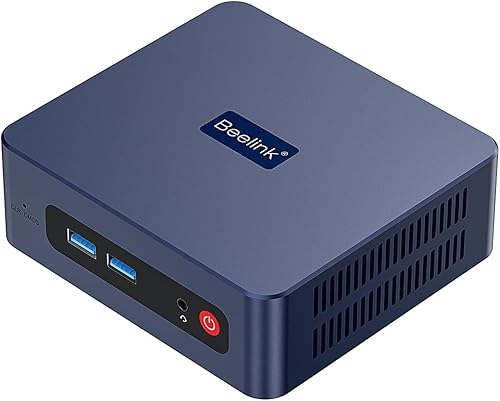
| Beelink SER3 16GB mini PC | everyday local files | AMD Ryzen 3 3200U, 2 cores and 4 threads | 16GB DDR4, 500GB NVMe SSD | Two HDMI outputs, up to 4K@60Hz | 7.9 |
| MINIX NEO Z300-0dB fanless mini PC | noise-sensitive workspaces | Intel Alder Lake-N N300, 8 cores | 16GB DDR4, 512GB NVMe SSD | 7.6 |
Which mini PC brand and model fits your desk?
Bosgame is the broadest office pick here, while the remaining models address more specific needs. Use the product sections to match a machine to your busiest normal workday, including the apps you leave running in the background.
Bosgame E5 Plus mini PC: Best for multi-screen home offices
- Three 4K@60Hz display outputs
- Two 2.5GbE LAN ports
- Two memory slots
- Windows 11 Pro preinstalled
Bosgame suits a home office with several screens and plans for later upgrades. Its separate video connections and two wired network ports give you more ways to build your desk setup.
Pros
- Three display outputs supporting up to 4K@60Hz each
- Two 2.5GbE LAN ports
- Two SODIMM slots support up to 64GB RAM
Cons
- 8GB starting memory leaves less room for busy multitasking
- Extra network ports add little to a basic single-network desk
Bosgame's E5 Plus suits a home office with several screens, wired networking needs and plans for later upgrades. Its Ryzen 3 5400U has 4 cores and 8 threads, making it a sensible starting point for documents, browser apps and video meetings.
The HDMI, DisplayPort and USB-C video outputs help when your monitors use different connections. You can keep a spreadsheet, reference material and communications on separate screens without relying on one connector type.
Its two 2.5GbE ports matter most if you already have compatible network equipment or a clear need for separate wired connections. They won't make a slower internet plan faster, and a basic desk on one network may leave the second port unused.
The starting 8GB RAM and 256GB SATA SSD are modest, but two SODIMM slots allow up to 64GB RAM and a separate NVMe slot adds storage. Windows 11 Pro comes installed, and Ubuntu is supported.
Choose it for flexibility and a planned upgrade path. Skip it if you want generous starting memory without opening the case or need a machine mainly for demanding graphics work.
Acemagic Ryzen 3 PRO mini PC: Best for growing file collections
- Ryzen 3 PRO 7330U
- Dual memory slots
- M.2 SATA and NVMe slots
- Three 4K display outputs
Acemagic suits an office where local files and app storage may grow. Two memory slots and separate SATA and NVMe storage slots allow upgrades without replacing the whole PC.
Pros
- Two memory slots and two storage slots
- Supports up to 4TB total storage
- Windows 11 Pro is preinstalled
Cons
- Starts with 8GB RAM and a 256GB SSD
- Bluetooth 4.2 is older than the Bluetooth 5.0 options here
Acemagic's Ryzen 3 PRO model suits an office where local files and software may outgrow the starting drive. Its Ryzen 3 PRO 7330U has 4 cores and 8 threads, paired with 8GB RAM and a 256GB SSD.
The useful feature is separate M.2 SATA and NVMe storage slots, with support for up to 4TB total storage. That gives you a path to add room for project folders, scanned records or a media collection.
Two memory slots also allow changes as your work grows. Plan those upgrades around your apps rather than assuming extra storage alone will improve a busy video call or a slow calculation.
HDMI, DisplayPort and USB-C video support a three-screen workspace, and Windows 11 Pro comes installed. Gigabit Ethernet, Wi-Fi 5 and Bluetooth 4.2 cover wired networking and wireless accessories.
Choose Acemagic if expansion is part of your plan, especially for local files. Skip it if you want more installed memory immediately, and confirm company requirements before assuming the processor's PRO name covers your IT team's needs.
GMKtec G3S mini PC: Best for basic dual-screen work
- Intel N95 processor
- Two HDMI 2.0 outputs
- Wi-Fi 5 and Bluetooth 5.0
- Wake-on-LAN support
GMKtec fits a straightforward desk for email, documents and browser work across two HDMI monitors. Network startup options also suit a PC that needs scheduled or remote access.
Pros
- Two 4K@60Hz HDMI outputs
- Wake-on-LAN, PXE boot and RTC wake support
- Wi-Fi 5 and Bluetooth 5.0
Cons
- 8GB RAM calls for modest multitasking expectations
- 256GB storage needs planning for large local files
GMKtec's G3S suits a simple desk where the main jobs are email, documents, browser tools and occasional media playback. The Intel N95 has 4 cores and 4 threads, with 8GB DDR4 RAM and a 256GB SSD.
Its two HDMI outputs make sense for a matched pair of office monitors. One screen can hold your main document while the other shows a reference page, which reduces window switching without making the workload itself more demanding.
Wake-on-LAN, PXE boot, RTC wake and auto power-on also give it uses beyond a conventional desk. These features can help with network startup or scheduled operation, but they need the right network and firmware settings.
Wi-Fi 5, Bluetooth 5.0 and Gigabit Ethernet cover common connection needs. Confirm the operating system and upgrade options before buying if either is essential to your plan.
Choose GMKtec for a modest, clearly defined workload with HDMI screens. Skip it if your normal day includes large spreadsheets, several busy apps or frequent creative exports that call for more processor and memory headroom.
Kamrui AK1PLUS mini PC: Best for shared family desks
- 16GB LPDDR4X memory
- Dual 4K@60Hz HDMI outputs
- M.2 and 2.5-inch storage expansion
- Wake-on-LAN support
Kamrui suits a family desk used for schoolwork, email and everyday browsing. Its included memory avoids an immediate RAM upgrade, while storage expansion leaves room for household files.
Pros
- 16GB memory comes installed
- Four USB 3.2 ports for desk accessories
- M.2 and 2.5-inch storage expansion
Cons
- Celeron processor favors routine tasks over demanding work
- Included SSD holds 256GB
Kamrui's AK1PLUS suits a shared family desk used for schoolwork, forms, email and video calls. Its 16GB LPDDR4X memory provides more starting room for open apps than the smaller memory configurations in this group.
The Celeron N5095 processor has 4 cores and 4 threads. More RAM helps keep work available in memory, but it doesn't turn this everyday processor into a choice for heavy editing or other sustained computing work.
Dual HDMI outputs support two screens, while four USB 3.2 ports give you room for common accessories. Count your keyboard, mouse, webcam and printer connections before deciding whether those ports cover the whole desk.
Storage can expand through M.2 SATA or NVMe up to 2TB, plus an additional 2.5-inch SATA drive up to 2TB. That is useful for a household photo collection, although a second internal drive should not be your only backup.
Choose Kamrui for everyday tasks without an immediate RAM upgrade. Skip it if CPU-heavy work is central to your day, or if you need confirmed memory expansion rather than simply enough RAM at the start.
Beelink SER3 16GB mini PC: Best for everyday local files
- 16GB DDR4 memory
- 500GB NVMe SSD
- Dual HDMI outputs
- Windows 11 Pro preinstalled
Beelink suits light office work with a larger collection of local documents and photos. Its included memory and storage reduce the need to open the case soon after setup.
Pros
- 16GB DDR4 memory and 500GB NVMe SSD
- Memory expands up to 32GB
- Supports an additional 2.5-inch SATA drive
Cons
- Two-core processor limits its appeal for demanding multitasking
- Extra memory cannot replace a stronger processor
Beelink's SER3 suits light office use with more local documents, photos or downloads to keep on the PC. The 16GB DDR4 RAM and 500GB NVMe SSD make its starting configuration useful for someone who wants to finish setup without planning immediate upgrades.
Its Ryzen 3 3200U has 2 cores and 4 threads. That makes processor demands the main point to watch, especially if your work involves several active programs rather than mostly reading and writing.
Two HDMI outputs support a dual-screen desk, and Windows 11 Pro comes installed. Wi-Fi 5, Bluetooth 5.0 and Gigabit Ethernet cover common network and accessory connections.
Memory can expand to 32GB, the NVMe drive can expand to 2TB, and a separate 2.5-inch SATA drive can add more space. Those options extend storage usefulness, but they don't change the processor's core count.
Choose Beelink when included memory and file space matter more than heavy computing. Skip it for frequent video exports, demanding development work or a busy workflow that would benefit more from a stronger processor.
MINIX NEO Z300-0dB fanless mini PC: Best for noise-sensitive workspaces
- Fanless passive cooling
- Intel N300 octa-core processor
- 16GB DDR4 memory
- 512GB NVMe SSD
MINIX suits a quiet desk where removing cooling fan noise matters most. Its passive cooling requires open placement because the top heatsink releases heat through the case.
Pros
- Fanless cooling removes cooling fan noise
- 16GB RAM and 512GB NVMe SSD
- Memory and storage expansion are supported
Cons
- Top heatsink can become hot during operation
- Display and network connections need confirmation for your setup
MINIX's NEO Z300-0dB suits a room where cooling fan noise is unwelcome, such as a quiet study or recording workspace. Its passive cooling removes the cooling fan from that noise equation.
The Intel N300 has 8 cores, paired with 16GB DDR4 RAM and a 512GB NVMe SSD. Windows 11 Pro comes installed, giving this configuration a practical starting point for everyday office apps and browsing.
Placement deserves more thought than it does with a typical desk box. MINIX warns that the top heatsink can become hot, so keep it out of children's reach and leave the surface clear to release heat.
Memory can expand to 32GB, and the M.2 2280 PCIe slot supports storage up to 4TB. Confirm the display and network connections needed for your desk before committing to this model.
Choose MINIX when passive cooling solves a real room need. Skip it if the only available location is a tight shelf, an enclosed cabinet or somewhere people will regularly touch the hot top surface.
What should you check before choosing a mini PC brand?
Start with your apps, existing screens and busiest work session, then choose the configuration that supports them. This prevents an attractive brand name or one large specification from driving the whole decision.
Which mini PC brands fit your workload?
Choose the processor for the work it must do, then choose enough memory to keep that work open. A browser-based admin desk has different needs from a computer used for large calculations, coding builds or media exports.
Write down your main apps and check their recommended requirements. Include the video meeting app, browser tabs, cloud sync and security tools that run alongside the program you think of as your main job.
Don't compare different processor families by clock speed or core count alone. Those numbers describe parts of a design, and an eight-core processor is not automatically the fastest option for every app.
For demanding games, complex 3D work or regular high-resolution video editing, look beyond this group unless your software requirements clearly fit. These picks focus on everyday home and office use.
How much memory and storage should you plan for?
16GB is a sensible general target for an office desk that keeps several apps open. An 8GB configuration can serve lighter work, especially if you keep background apps and browser tabs under control.
Capacity and speed solve different problems. More SSD space holds more files, while more RAM helps with active work; buying a larger drive won't fix a shortage of working memory.
A 256GB drive can become crowded once the operating system, apps, updates and local files share it. Check how much space your current computer uses and leave room for growth rather than planning to fill the new drive immediately.
Before upgrading, confirm the slot type, supported capacity and whether the change adds a drive or replaces one. Our guide to mini PC RAM upgrades explains the memory checks to make before ordering parts.
Which monitor ports do you actually need?
Match the PC's outputs to the screens you own, including the resolution and refresh rate you want to use. A connector that fits physically does not guarantee every video mode will work.
USB-C needs particular care because the connector shape alone does not promise video output or charging support. Check the computer, cable and monitor together before planning a one-cable desk.
Adapters can add cost and confusion, especially when converting between HDMI and DisplayPort. A direct connection is usually the simpler starting point, and some adapters work in only one direction.
Also check whether the quoted display support applies to all screens connected at once. A high-resolution desktop output does not tell you how well a PC will run a demanding game at that resolution.
What do networking and support add?
Stable connections and clear support terms matter more than unused extras. Ethernet is useful for a fixed desk, while wireless performance depends partly on your router, distance and nearby obstacles.
A faster Ethernet port only helps when the equipment and connection at the other end support it. Two network ports need a specific purpose, such as separate networks, rather than being an automatic benefit for every home.
Read warranty coverage by period and component, including who handles a repair and where the unit must go. A multi-year warranty should not be treated as the same thing as multi-year refunds or immediate replacement.
For a business purchase, save the model details and support information with the invoice. That makes later service requests easier and helps avoid confusing the machine with another version bearing a similar name.
How should you set up a new mini PC?
Start on an open desk with one monitor and basic peripherals, then add the rest after the first startup. This makes connection problems easier to isolate and keeps the power button and ports within reach.
Use the supplied power adapter and connect the monitor to a video output on the PC. Select the correct input on the monitor before assuming a blank screen means the computer has failed.
Complete the operating system setup, install system updates and check activation before moving important work across. If the included operating system is unclear, our guide to whether mini PCs come with Windows explains what to confirm.
Use official support channels for drivers and firmware. Avoid installing a firmware update merely because a download has a similar model name, since closely named systems can use different hardware.
Add your second and third screens one at a time, then set their position, scale and refresh rate in display settings. For the connection order and first startup steps, follow our mini PC setup guide.
Finally, enable your backup plan and check that files can be restored. Cloud sync is useful, but changes or deletions can sync too, so keep another recovery option for important documents.
How do you keep a mini PC cool and useful?
Give the case room to release heat and keep its vents clear. Avoid soft surfaces, piles of paper, enclosed shelves and positions where warm air collects behind other equipment.
For fan-cooled models, shut down and unplug the PC before cleaning dust from accessible vents according to the brand's instructions. Don't spray liquid into openings or remove panels without checking the service guidance.
Fanless systems still need airflow around the case. Keep books, accessories and storage drives off a heatsink surface, and avoid placing the computer where direct sunlight adds heat.
If sound matters, our guide to mini PC fan noise explains why a fan may become more noticeable during updates or heavier work. A compact computer can change its fan speed as the workload changes.
Keep enough free storage for updates and temporary files, and review startup apps if the desk begins to feel slow. If crashes or heat problems appear, check placement and recent software changes before assuming a hardware upgrade is the answer.
What common mini PC buying mistakes should you avoid?
Avoid choosing by one headline specification, such as RAM capacity, processor clock speed or maximum display resolution. The useful configuration is the one that balances the work you do with the connections you need.
- Buying more memory around the wrong processor: Extra RAM cannot make a slow calculation or export run like it would on a stronger CPU.
- Assuming every version is alike: Match the full configuration before comparing recommendations or buying accessories.
- Planning upgrades without checking access: The right drive size, interface and available slot matter as much as maximum capacity.
- Forgetting the rest of the desk: Allow for a monitor, keyboard, mouse, webcam, cables and any required adapters.
- Using an internal drive as the only backup: A fault, theft or accidental deletion can affect both drives in the same PC.
- Treating remote startup as remote access: Wake features can start a machine, but you still need suitable access software and security settings.
For a work-critical desk, also plan what happens if the computer needs service. Keeping current backups and access to essential files matters more than choosing a brand by warranty length alone.
Which of the best mini PC brands should you choose?
Choose Bosgame for a flexible office desk or Acemagic when planned storage growth drives the purchase. Pick GMKtec for basic dual-HDMI work, Kamrui for a shared everyday desk, or Beelink when included memory and local file space take priority.
Choose MINIX for a noise-sensitive room where you can give its passive cooling enough space. Its specialist cooling design is a stronger reason to buy it than its position in the overall order.
Your final check among the best mini PC brands should be simple: confirm the apps, monitor connections, installed configuration and upgrade plan before ordering. For a tighter-budget shortlist, use our best budget mini PCs to compare alternatives against those same needs.
Our top 3 picks at a glance
-
1
-
2
-
3
Frequently asked questions
Which mini PC brand is best for home and office use?
Bosgame is our top pick for a flexible home office, but the best choice depends on the exact model. Acemagic suits storage growth, GMKtec fits basic dual-screen work, and Kamrui and Beelink include more starting memory; choose MINIX when removing cooling fan noise is your main goal.
What should you compare between mini PC brands?
Compare the exact processor, installed memory, storage, monitor outputs and upgrade options first; then check operating system details, cooling and support terms. Write down every device you need to connect so a missing video output or occupied USB port does not force an unplanned adapter or hub.
Are mini PCs from smaller brands suitable for office work?
Yes, a suitable configuration can handle documents, email, browser apps and video calls; match the machine to your busiest normal work session, including background apps. For a company desk, confirm approved software, device management, security requirements and support arrangements with your IT team before choosing a model.
Is a fanless mini PC always silent?
Fanless cooling removes cooling fan noise, but other electrical or connected-device noise can still be audible. The MINIX NEO Z300-0dB uses passive cooling, and MINIX warns that its top heatsink can become hot; give it open space, keep objects off the case and place it out of children's reach.


