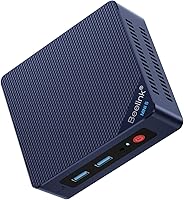
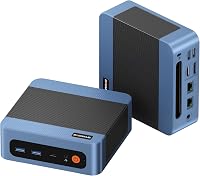
Bosgame vs GMKtec Mini PC: Which Brand Is Better? (November 2026)
For Bosgame vs GMKtec, choose the E5 Plus for planned upgrades and dual wired networking, the G3S for routine two-screen work, or the G10 for more included memory and storage. Match the exact model to your apps and monitor connections.
On this page (14 sections)
- Bosgame vs GMKtec: which mini PC should you choose?
- Which model fits your workload?
- Bosgame E5 Plus: who should buy it and who should skip it?
- GMKtec G3S: who should buy it and who should skip it?
- GMKtec G10: who should buy it and who should skip it?
- How much should processor names influence the decision?
- Which monitor connections should you plan around?
- Will faster Ethernet or Wi-Fi change your choice?
- What should you check before adding memory or storage?
- How should you set up and care for the PC?
- Which buying mistakes should you avoid?
- Bosgame vs GMKtec: the configurations side by side
- FAQ
- Bosgame vs GMKtec: make the final choice
Bosgame vs GMKtec: which mini PC should you choose?
For Bosgame vs GMKtec, choose the E5 Plus for planned upgrades and dual wired networking, the G3S for basic office work, or the G10 for more memory and storage from the start.
The right choice depends on what will sit on your desk and run each day. A document-and-email computer needs a different balance from a machine holding a large photo library or connecting to several screens.
GoodsTopia compared these specific configurations. They don't guarantee a brand-wide winner, since another model from either company can have a different processor, ports and upgrade limits.


Which model fits your workload?
The G3S fits a light, predictable workload, the E5 Plus suits buyers planning changes, and the G10 suits buyers who want more capacity without opening the case immediately.
Start with your busiest normal hour. Count the apps you keep open during a video call, the files you store locally and the screens you actually use.
A browser, email app and document editor make a different demand from several large spreadsheets alongside a meeting and background file syncing. Buy for that normal workload before paying attention to features you might never use.
Bosgame vs GMKtec for a basic home office
The G3S is the straightforward choice for browsing, documents, email and a pair of HDMI monitors. Read our GMKtec G3S mini PC review if that describes your whole workday.
Choose the E5 Plus instead when adding memory or a second drive is part of the plan. Choose the G10 when you'd rather start with more capacity and leave the case closed.
For other configurations, our best budget mini PCs and mini PC brand guide help you compare beyond these three models.
Bosgame E5 Plus: who should buy it and who should skip it?
Buy the E5 Plus for planned expansion or network projects. Its combination of accessible memory slots, a separate storage expansion slot and two wired network connections gives you specific reasons to choose it.
It has a Ryzen 3 5400U with 4 cores and 8 threads, paired with 8GB DDR4 RAM. Two SODIMM slots support expansion up to 64GB, so you can increase memory as your workload grows.
The included 256GB M.2 2280 SATA SSD can hold the operating system and everyday apps. A separate M.2 2280 NVMe PCIe 3.0 x4 slot lets you add storage while keeping that drive.
This layout suits a buyer who wants to spread upgrades over time. Keep in mind that buying extra parts and fitting them adds work, so compare the whole planned configuration before choosing.
Skip it if you want more memory and storage immediately and have no interest in upgrades. The G10 starts with more of both, while a basic user may have little use for the E5 Plus's network flexibility.
GMKtec G3S: who should buy it and who should skip it?
Buy the G3S for a focused everyday computer with simple screen connections. It makes the most sense when your needs already fit its included hardware.
The Intel N95 has 4 cores and 4 threads, with 8GB DDR4 RAM and a 256GB M.2 2242 SSD. That's a sensible starting point for routine office apps and browsing when you manage open programs and keep larger files elsewhere.
A household computer for school portals, bills and streaming doesn't need every expansion feature available. Avoid turning that simple brief into a more complex purchase unless you have a clear reason.
Skip the G3S if you need three native display outputs, a known high-capacity memory upgrade path or faster wired networking. Confirm compatible upgrades before choosing it as a machine you expect to expand.
Its Wake On LAN, PXE Boot, RTC Wake and Auto Power On features also suit planned startup tasks. These features still need the right firmware settings, software and network setup.
GMKtec G10: who should buy it and who should skip it?
Buy the G10 for more included memory and file space. It's the strongest fit here for someone who wants to install apps, move files over and avoid an immediate capacity upgrade.
It combines a quad-core Ryzen 5 3500U with 16GB DDR4 RAM and a 1TB SSD. That extra starting capacity suits a larger local photo collection, downloaded media or several everyday apps kept open together.
Two M.2 2280 PCIe 3.0 slots provide storage expansion options. GMKtec gives conflicting maximum memory figures of 32GB and 64GB, so confirm the supported limit before buying a large RAM kit.
Skip it if your files mostly live in cloud storage and your workload stays light. Also look beyond these models if demanding games, large video projects or specialist graphics work are your main reason for buying.
GMKtec positions the G10 for casual gaming with its integrated Radeon Vega 8 graphics. Choose games around their requirements rather than assuming the Ryzen 5 name guarantees a particular result.
How much should processor names influence the decision?
Use the processor as one part of the choice, alongside memory, storage and connections. A Ryzen 5 label doesn't automatically make the G10 the better computer for every buyer.
Core counts, thread counts and clock speeds describe different aspects of a processor. They don't combine into a reliable speed ranking across different designs, and boost speed isn't a promise of sustained performance.
For ordinary office work, enough memory for your open apps can matter more than a small CPU difference. A faster processor won't make an undersized drive hold more files or add a missing monitor connection.
For specialist software, check its recommended hardware requirements rather than just the minimum needed to launch it. Our mini PC buying guide explains how to weigh the parts together.
Which monitor connections should you plan around?
Choose around your monitors' actual inputs, especially if you already own the screens. Matching native connections keeps the setup simpler and reduces the need for adapters.
The E5 Plus offers HDMI 2.0, DisplayPort and USB-C video outputs, each supporting up to 4K at 60Hz. The G3S has two HDMI 2.0 outputs with that resolution and refresh-rate support.
The G10 connects three displays through HDMI, DisplayPort and USB-C. For either three-screen model, map each screen to a separate output before ordering cables.
A USB-C connector alone doesn't tell you what a cable or monitor supports. For video, use a compatible display input and a cable that carries video, rather than a charging-only cable.
Start with one screen during setup, then connect the others and select Extend in the display settings. Arrange their on-screen positions to match your desk so the pointer moves between them naturally.
Will faster Ethernet or Wi-Fi change your choice?
Choose faster Ethernet for a network that can use it. It matters most for transfers to compatible local equipment, rather than automatically making every internet task faster.
The E5 Plus has two 2.5GbE ports, the G10 has one 2.5GbE port, and the G3S has Gigabit Ethernet. All three include Wi-Fi 5 and Bluetooth 5.0.
The E5 Plus's second network port suits projects that need separate wired connections. It doesn't create a secure router or network appliance by itself; that depends on software and correct configuration.
For a single home-office connection, count the devices between the PC and the destination. A slower switch, router port or storage device can limit a file transfer even when the PC supports a faster link.
For wireless use, placement matters. Try the computer in its intended position before fixing it behind a monitor or inside a desk recess.
What should you check before adding memory or storage?
Check slot type, drive size and supported capacity before buying parts. M.2 describes a physical format, so it doesn't mean every M.2 drive fits or uses the right connection.
The E5 Plus's SATA and NVMe slots serve different drive types, and the G3S's included drive uses a shorter format than the expansion drives described for the other models. Match the replacement to the exact slot.
Check the installed memory layout before ordering RAM. Two available slots don't tell you whether the current memory occupies one or both, which changes whether an upgrade means adding or replacing modules.
Use Task Manager during normal work to see whether memory is under pressure. Check free drive space separately, since RAM and storage solve different problems.
Before opening the case, back up files, shut down and disconnect power. Follow the model's instructions, handle components by their edges and keep removed screws together.
How should you set up and care for the PC?
Use the supplied power adapter for initial setup, keep the vents clear and finish software updates before moving your main workload over. This makes it easier to spot connection or software problems early.
Connect the display, keyboard and mouse first. Once the system starts, check the display settings, internet connection, audio and sleep behavior before adding printers, hubs or other accessories.
The E5 Plus comes with Windows 11 Pro and supports Ubuntu. Confirm the included operating system and edition for either GMKtec model; our guide to whether mini PCs come with Windows explains the key checks.
Our mini PC setup guide covers the first connections. Install drivers from the appropriate official support source and avoid unrelated driver-download tools.
Keep the machine on a firm surface with space around its vents. Shut it down and disconnect power before cleaning exterior dust, and follow its care instructions for anything beyond that.
Set up a separate backup for files you can't replace. A second internal drive can add space, but it doesn't protect against theft, accidental deletion or failure affecting the whole computer.
Which buying mistakes should you avoid?
Avoid paying for the wrong capability or overlooking a connection you need every day. These mistakes can matter more than a small difference between processors.
- Treating 4K output as gaming power: displaying a desktop or video at high resolution doesn't guarantee demanding game performance.
- Buying for a vague future upgrade: work out which part you'd add, whether it fits and whether you want to install it.
- Assuming USB-C replaces the power adapter: video, data and power functions require compatible devices and cables; don't assume your monitor can power the PC.
- Ignoring peripherals: include the keyboard, mouse, display cables and any required adapters in your plan.
- Choosing by brand alone: compare the exact configuration, since different models can serve very different workloads.
Warranty coverage also deserves a clear comparison. Bosgame provides a 1-year whole-machine warranty and a 3-year parts warranty for the E5 Plus.
For purchases starting in October 2026, GMKtec provides 3-year coverage: complete-unit returns and replacements in year 1, then major-component replacements in years 2 and 3. Keep your order record and check the applicable support process.
Bosgame vs GMKtec: the configurations side by side
Use this table to check the hardware against your must-have list. Start with workload and monitor connections, then decide whether included capacity or future expansion matters more.
| Product | Best for | Processor | Memory and storage | Displays and network | Our score |
|---|---|---|---|---|---|
| Bosgame E5 Plus mini PC | network projects | AMD Ryzen 3 5400U, 4 cores and 8 threads | 8GB DDR4; 256GB SATA SSD; extra NVMe slot | Triple 4K@60Hz; dual 2.5GbE | 8.9 |
| GMKtec G3S mini PC | basic office desks | Intel N95, 4 cores and 4 threads | 8GB DDR4; 256GB SSD | Dual HDMI 4K@60Hz; Gigabit Ethernet | 8.5 |
| GMKtec G10 mini PC | larger local libraries | AMD Ryzen 5 3500U, quad-core | 16GB DDR4; 1TB SSD; dual M.2 slots | Triple displays; 2.5GbE | 7.8 |
If none fits your main software or expansion needs, broaden the search before buying. Our best mini PCs for home and office covers other options.
FAQ
You can use these models for everyday desktop work, but graphics demands, upgrades and mounting plans need separate checks. These answers cover practical questions that the main specifications don't settle.
Can these mini PCs replace a home desktop?
Yes, for email, documents, web browsing and similar everyday work, these models are sensible desktop candidates. Check any specialist software before switching, especially if it needs a dedicated graphics card or several internal drives.
You'll also need a monitor, keyboard and mouse, plus a suitable backup plan.
Does a 4K output make a mini PC good for gaming?
No. A 4K output describes the display signal the connection supports, not the frame rate a game will achieve.
Check each game's hardware requirements and expect to adjust resolution and visual settings on integrated graphics. Choose a different class of PC if demanding games are your main use.
Should I upgrade memory or storage first?
Upgrade memory when your normal apps compete for RAM; add storage when files and installed programs fill the drive. Check Task Manager during your usual work before buying parts.
A storage upgrade won't solve every slowdown, and extra memory won't create more space for your photos or documents.
Can I mount one behind a monitor?
Each model includes a VESA mount and screws, but check your monitor's mounting arrangement before planning the installation. A monitor arm may already occupy the mounting holes.
Leave ventilation space, allow room for cable plugs and keep the power button and frequently used ports within reach.
Bosgame vs GMKtec: make the final choice
Resolve Bosgame vs GMKtec by choosing what you need on day one. Pick the E5 Plus for planned expansion and network projects, the G3S for a focused everyday desk, or the G10 for more included capacity.
Before ordering, write down your main apps, monitor inputs and local file needs. Any model that fails one of those requirements should leave your shortlist, regardless of its score.
If another GMKtec alternative is still on your list, read our GMKtec vs Beelink comparison next.
Frequently asked questions
Can these mini PCs replace a home desktop?
Yes, for email, documents, web browsing and similar everyday work, these models are sensible desktop candidates. Check any specialist software before switching, especially if it needs a dedicated graphics card or several internal drives.
You'll also need a monitor, keyboard and mouse, plus a suitable backup plan.
Does a 4K output make a mini PC good for gaming?
No. A 4K output describes the display signal the connection supports, not the frame rate a game will achieve.
Check each game's hardware requirements and expect to adjust resolution and visual settings on integrated graphics.
Choose a different class of PC if demanding games are your main use.
Should I upgrade memory or storage first?
Upgrade memory when your normal apps compete for RAM; add storage when files and installed programs fill the drive. Check Task Manager during your usual work before buying parts.
A storage upgrade won't solve every slowdown, and extra memory won't create more space for your photos or documents.
Can I mount one behind a monitor?
Each model includes a VESA mount and screws, but check your monitor's mounting arrangement before planning the installation. A monitor arm may already occupy the mounting holes.
Leave ventilation space, allow room for cable plugs and keep the power button and frequently used ports within reach.